Delegations
When new external correspondence calls for team work, Clerk can prepare a delegation email for you. It proposes recipients, a brief, a priority, and a deadline. You decide what to send.
Before starting, your firm must complete Clerk Setup. Turn on the Clerk switch in Outlook Chat to let it prepare drafts for new incoming mail, including while Outlook is closed.
Choose your team
Open Clerk > Drafts > My team. Search for colleagues and select those you want Clerk to consider for delegation. Select a checked colleague again to remove them from your team.
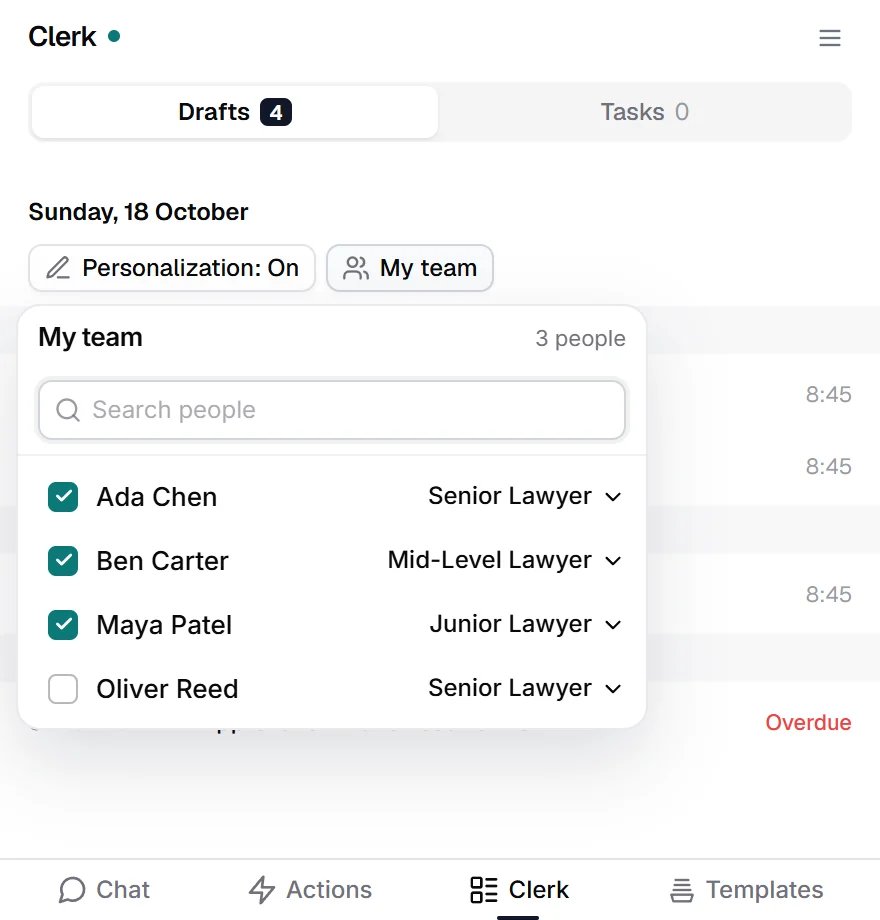
Use Set role, or select the current role, to choose Senior Lawyer, Mid-Level Lawyer, or Junior Lawyer. Changes save automatically. Team selection is personal to you, but a lawyer's seniority is shared across the firm. Sonar Legal sets Partner designations.
If a colleague is missing, check that they belong to the same organization in Sonar Legal. Without a selected team, you may need to add recipients yourself before sending a proposal.
Set your preferences
Open Personalization, turn it on, and describe how you want Clerk to work. For example: “Use a concise professional tone. Sign off with ‘Best, Alex’. For lease reviews, suggest Ada from my team.” Wait for the saved status.
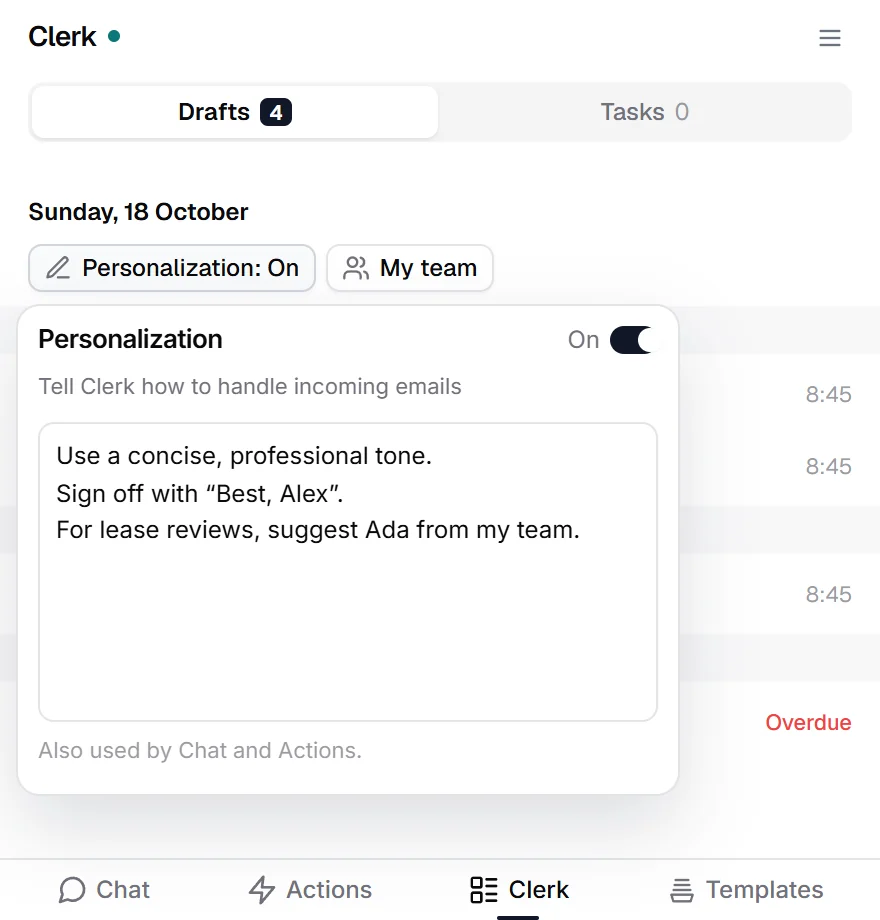
Turning Personalization off keeps the text but stops using it. It does not switch Clerk off.
Review and send the delegation
- Open a proposal under Clerk > Drafts > Delegations.
- Review the client's email and the proposed work.
- Select Open email to open the actual Outlook draft.
- Check or change the recipients, instructions, Priority, and Deadline.
- Keep the [SL-…] reference in the subject and the task information in the email body.
- Send the email from Outlook.
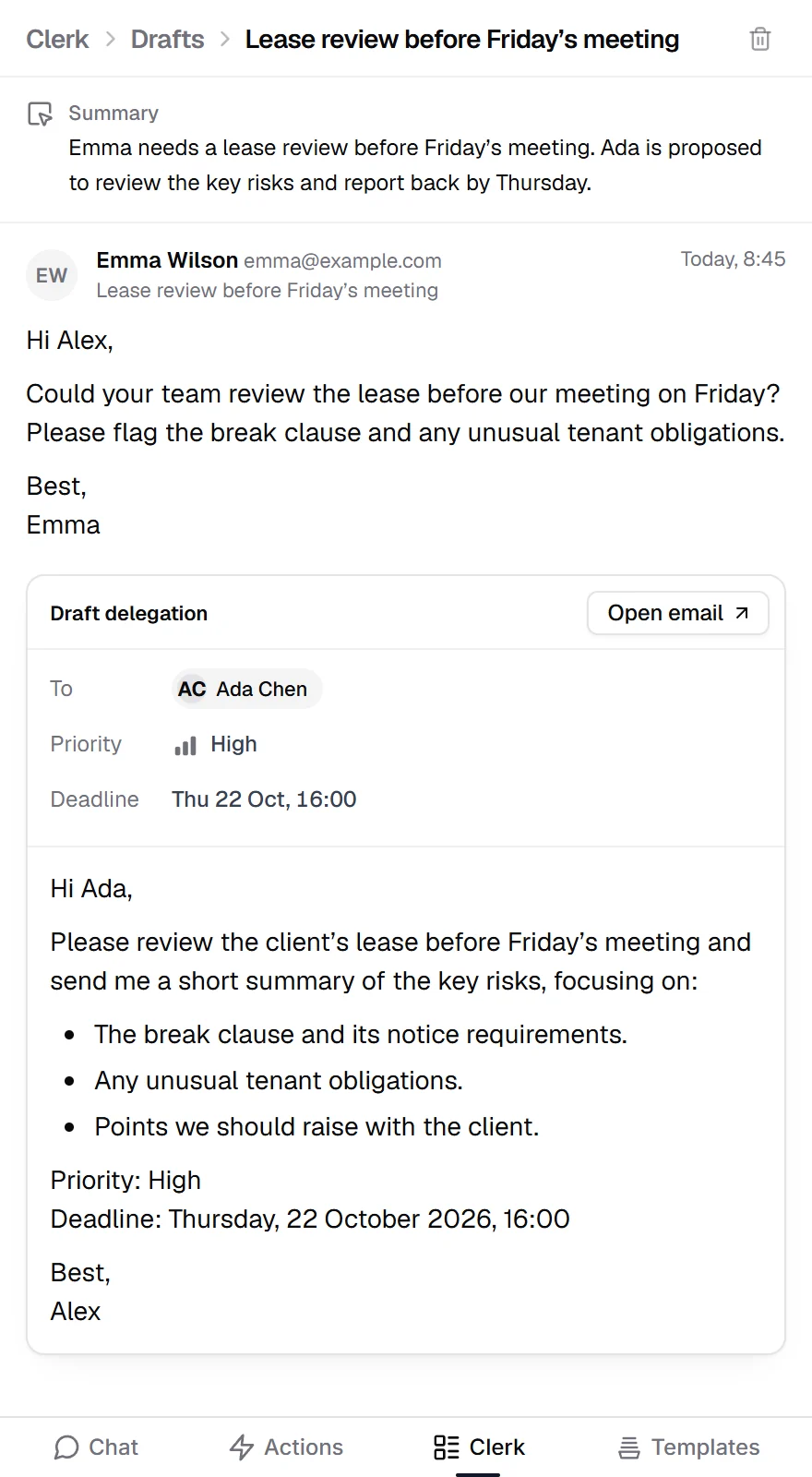
A Clerk delegation is only a draft until you send it. Sonar Legal creates the task after it sees the sent delegation. The task uses the recipients and details in that sent email, including changes you made to the priority or deadline. Keep the task details in the body and change their values rather than removing the whole section.
A recognized colleague from your firm must be included for the task to be created. Review the task preview in Clerk after returning from Outlook; it refreshes to reflect draft edits. Some details are read when you send.
Keep the work in the same thread
Colleagues can reply, ask a question, pass the work to another colleague, or send it back for review. Keep the task reference and the information in the body when doing so. Sonar Legal follows the correspondence to show the task's progress and who should act next. See Tasks.
If Clerk also prepared an acknowledgment to the client, it is a separate draft. Sending the internal delegation does not send that acknowledgment.