Replies and follow-ups
Clerk reads new external correspondence and prepares the next email when action is needed. It can draft a reply, acknowledge a request while you delegate the work, or bring an unanswered request back as a follow-up.
Clerk prepares drafts. You review, edit, and send every email.
Turn background drafting on
Complete Clerk Setup, then use the Clerk switch in Outlook Chat. Check that the switch is on. Clerk can continue working while Outlook is closed.

Clerk focuses on new correspondence after activation. It does not work through your old inbox as a queue of unanswered emails. Newsletters, automatic notices, internal discussions, and messages that need no action may produce no draft.
Review a reply
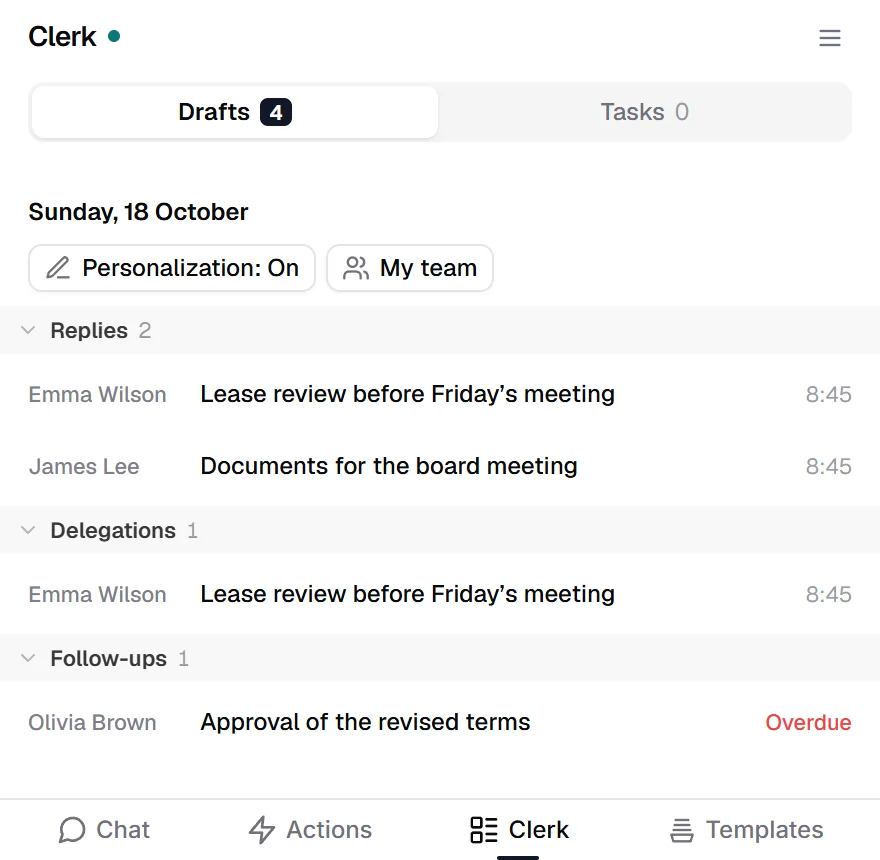
- Open Clerk > Drafts > Replies.
- Select an item and read the source correspondence and proposed reply.
- Select Open email to edit the draft in Outlook.
- Check the wording, recipients, facts, and any commitments before sending.
Prepared emails also appear in your Outlook Drafts folder. Clerk can use your personal instructions and a writing-style profile learned from sent correspondence. You can change anything in a draft before sending.
If the sender writes again, Clerk may refresh the proposal. Review the latest message before sending. An acknowledgment and an internal delegation are separate drafts, and each needs its own review and send.
Review a follow-up
Open Follow-ups to see sent correspondence that is still waiting for an answer or action. Clerk checks this each morning and considers the request and any stated dates.
Open an item, read the original request, and use Open email when the follow-up draft is ready. A draft can take a moment to prepare when first opened. Edit it and send it from Outlook.
This is a list of suggested follow-ups, not a complete diary of every deadline. Keep using your firm's normal deadline-management process.
Remove a draft you do not need
Use the item's delete control and confirm. The Clerk item and its Outlook draft are removed. The original incoming or sent message stays intact.
Turn Clerk off
Use the switch in Outlook Chat. This stops your background Clerk processing and clears your draft and follow-up listings. Draft emails already in Outlook remain there. Existing tasks remain available, and your firm's Microsoft approval is unchanged.
If nothing appears, check that Clerk is on and allow time for a new external message to be processed. You will not see a draft for every message.