Tasks
Use Clerk's Tasks view to follow work through your firm. A task brings the brief, people, priority, deadline, and related correspondence together.
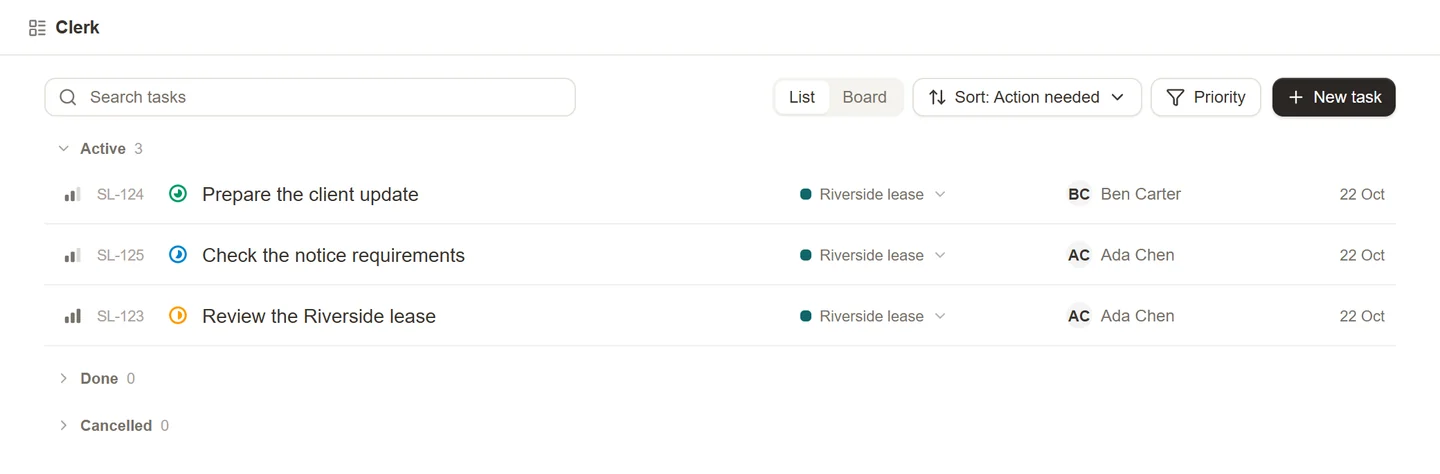
Create a task for a colleague
- In the Sonar Legal App, open Clerk and select New task.
- Under To, select Add colleagues and choose the people who should do the work.
- Enter a clear Subject and Instructions. Explain the result you need and provide the context they will need.
- Check Priority and Deadline. Assign the task to a matter if it belongs with existing client work.
- Select Open in Outlook.
- Review the email in Outlook, keep its [SL-…] reference and task details, and send it when ready.
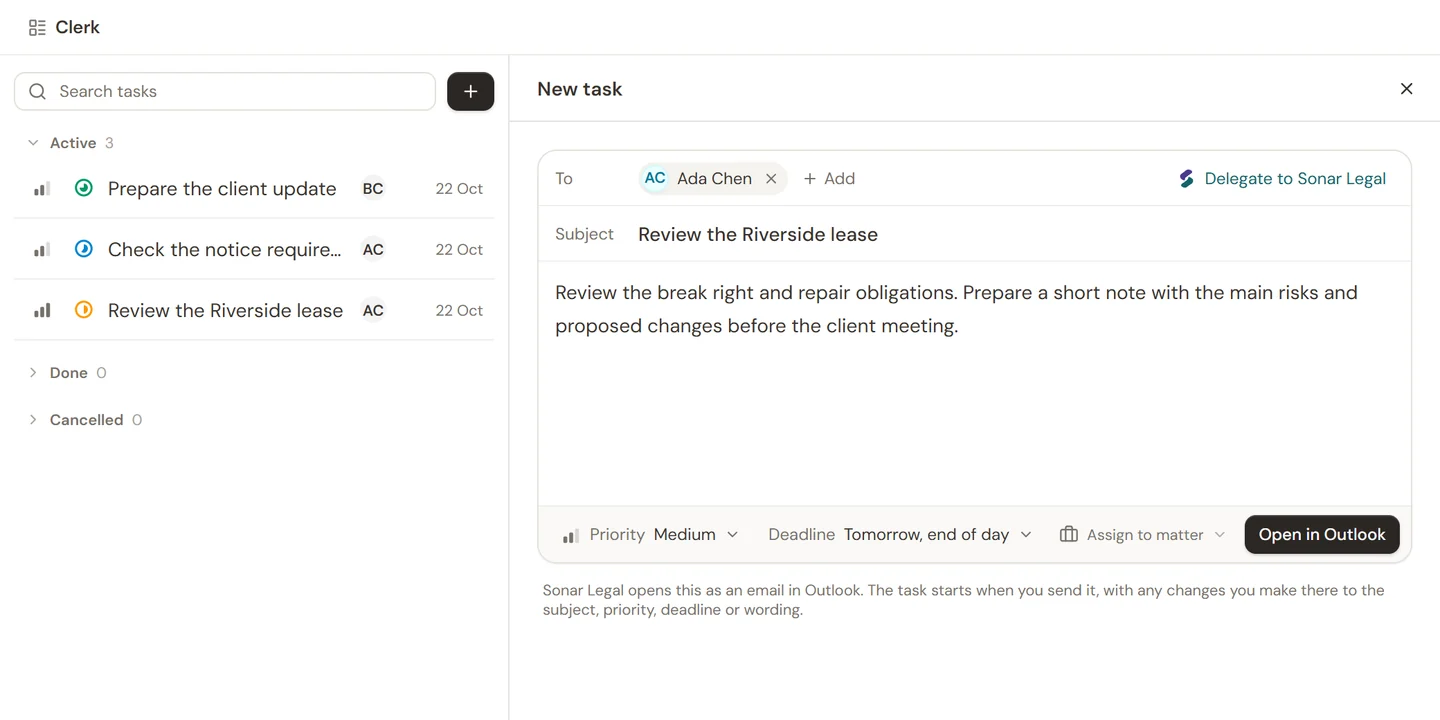
The colleague's task starts when you send the email. Preparing or opening it may reserve a task reference, but leaving the email as a draft does not send the work to your colleague. Changes you make to its subject, wording, priority, or deadline in Outlook are used when it is sent.
In Outlook, you can also open Clerk > Tasks and select New task. To delegate work from the message you are reading, use Delegate and review the suggested brief before sending.
If Clerk has already prepared a delegation for incoming mail, follow Delegations.
Ask Sonar Legal to do a task
In New task, choose Delegate to Sonar Legal in place of colleagues. Enter the subject and instructions, then select Delegate to Sonar Legal to start it. Sonar Legal begins immediately and returns the work for your review; this path does not wait for you to send a delegation email.
Follow the task
Open Clerk > Tasks in Outlook, or Clerk in the Sonar Legal App. Open a task to review its details and correspondence. Use its latest-email control to continue the conversation in Outlook.
The task's status and history help you see whether work is assigned, someone needs an answer, or work is back for review. Keep instructions and responses in the task's email thread so Sonar Legal can follow the handover.
Hand work to another colleague
Reply in the task thread and clearly address the person who should act next. Explain what you need from them and any change in timing. If the work returns to you for review, respond in that thread with your decision or further instructions.
Retain the [SL-…] reference in the subject and the task information included in the email body. Do not start a fresh, unrelated email when continuing the same task. These details help keep the correspondence with the right task.
Change priority or deadline
Use the task's available controls to update its details. For a Clerk delegation that has not been sent, make changes directly in the draft email: the task is created from what you actually send. See Delegations.
After a handover or update, allow time for the email to be processed, then check the task. If the change is missing, confirm that you sent the email in the correct thread and kept its task reference.
Finish the work
Use the task's status control to record completion when the work is finished. Check that the result and any final instructions are recorded in the correspondence so colleagues can understand the outcome later.
If Clerk or Tasks is unavailable, ask your firm's Sonar Legal contact to confirm access and the Microsoft 365 setup.