Outlook Add-in

Sonar for Outlook brings AI-powered email drafting and response tools directly into Microsoft Outlook. Draft professional responses, polish grammar, translate emails, and apply track changes—all without leaving your inbox.
Installation
There are three ways to install Sonar for Outlook:
Option 1: Microsoft AppSource
Get Sonar for Outlook from Microsoft AppSource by signing in with your Microsoft tenant, or click this link:
Add Sonar for Outlook
If you cannot download via the link, you may try another option below.
Option 2: Install from Outlook
- In Outlook, navigate to the Home tab and look for the add-ins option. Depending on your Outlook version, this may be labeled as "Get Apps," "Get Add-ins," "All Apps," or "More Apps."
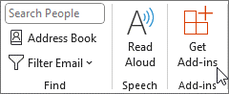
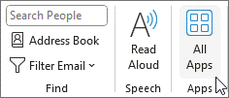
If your label is All Apps/More Apps/Get Apps: A dropdown menu will appear. Click the + Add Apps button to navigate to the Microsoft AppSource.
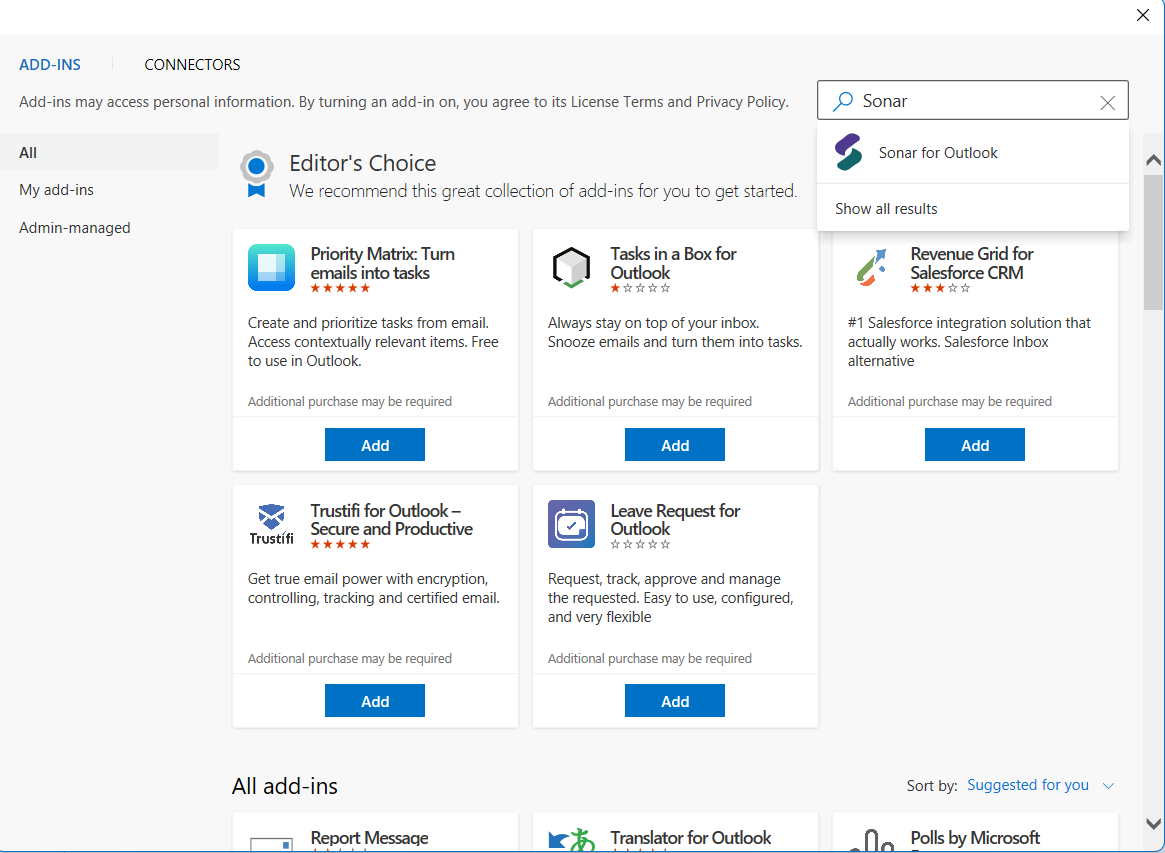
- You will be redirected to the Microsoft AppSource. Search for "Sonar." Once you find it, click on the search result, then click "Add" to install.
Option 3: Deploy for your organization
Use this option if an IT administrator will install Sonar for Outlook for users or groups.
-
Sign in to the Microsoft 365 Add-ins page with an administrator account.
If the direct link does not open, go to Settings > Integrated apps > Add-ins.

-
Select Deploy Add-In, then select Choose from the Store.

-
Select Outlook from the left side panel, search for sonar, then click Add next to Sonar for Outlook.

-
Accept the terms and assign the add-in to users or groups authorized to use Sonar Legal. Start with a small pilot group, confirm that the add-in works, then expand the assignment to the remaining authorized users.
-
Set the deployment method to Fixed, then select Deploy.
Users may need to restart Outlook. Microsoft advises that centrally deployed add-ins can take 24–72 hours to appear.
Deploying the Outlook add-in does not automatically authorize all features. If you opt-in for the Sonar Legal agentic features, you will need to complete the M365 authorization by signing in to one of the pilot users.
Getting Started
-
After installation, Sonar for Outlook will appear in your Home panel. If your icon is labeled "Get Apps", "All Apps", or "More Apps", click the icon and you will see Sonar for Outlook appear in the dropdown options. If you do not see Sonar for Outlook, refresh the page.
-
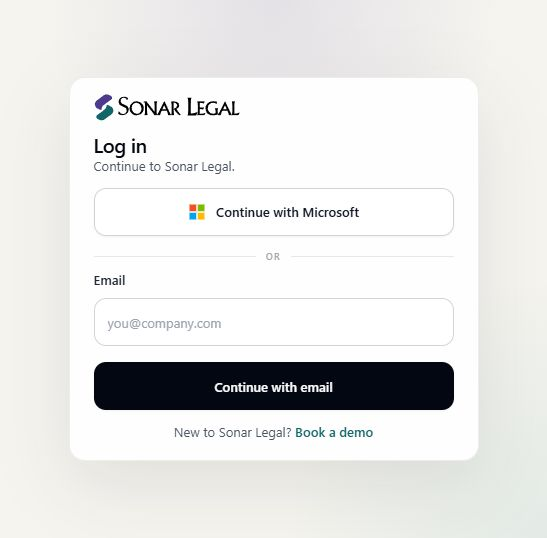
Launch Sonar for Outlook. On the login page, choose one of the following options:
- Continue with Microsoft (Recommended): Sign in with your Microsoft work or school account.
- Continue with email (Fallback): Enter your email address to receive a one-time verification code. Note: Using email sign-in is not compatible with features that require M365 Opt-In.
-
Complete the sign-in steps in the pop-up window. If your browser asks for permission to open the window, select Allow. For email sign-in, enter the 6-digit verification code sent to your email address.
-
You are now logged in. Pin Sonar for Outlook to your Outlook toolbar by clicking on the pin icon.

- You're all set! Sonar for Outlook is now ready to use.
We strongly recommend pinning Sonar for Outlook to avoid the addin closing when switching between email replies.
Features
Chat
A unified chat interface like Partner. Give Sonar Legal any task connected to your email.
Actions
The six quick actions you are familiar with from Sonar for Word, plus more:
- Draft – Draft a new email.
- Redraft – Rewrite selected text with your instructions.
- Translate – Translate selected text into another language.
- Polish – Improve grammar and clarity of selected text.
- Track – Show your recipient what you've changed.
- Accept – Accept Sonar track changes in this draft.
Templates
Generate your own email templates to have Sonar Legal draft in your preferred tone, or start with one from Sonar Legal.
Supported Versions
- Outlook Online: All versions supported
- Outlook Desktop (Microsoft 365): All versions supported
- Outlook for Mac: All versions supported
Unsupported Versions: Volume-licensed versions of Office 2019 and Office 2016 are not compatible with Sonar for Outlook due to lack of WebView2 support.