M365 Opt-In
If you want Sonar for Outlook to search the emails of authorized Sonar Legal users and create agentic tasks from their messages, a Microsoft 365 administrator must grant Sonar Legal certain permissions. This process needs only to be done once per organization, and is separate from deploying Sonar for Outlook.
The process must be initiated by an authorized Sonar Legal user of your organization.
Before you start
You need:
- An authorized Sonar Legal user with the Outlook add-in installed.
- A Microsoft 365 Global Administrator or Privileged Role Administrator account.
Authorization Steps
Step 1: Initiate Consent (Sonar Legal User)
The Sonar Legal user must initiate the request from within Outlook:
- Open Outlook and open Sonar for Outlook.
- Sign in to Sonar Legal.
- Select Tasks.
- On Admin consent required, select Open admin consent.
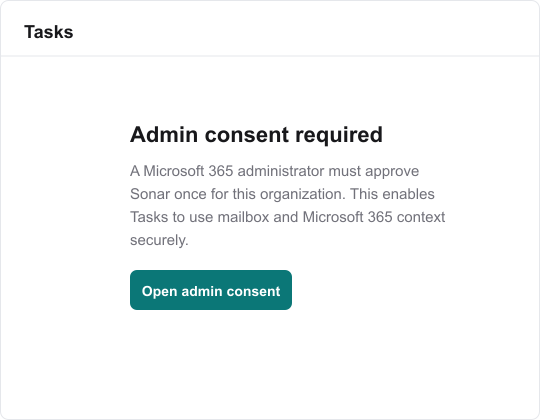
Step 2: Grant Consent (Microsoft 365 Administrator)
The Microsoft 365 administrator completes the approval in the opened Microsoft window:
- Sign in with your administrator account.
- Confirm that the Microsoft tenant is correct.
- Review the publisher and requested permissions, then select Accept to approve Sonar for the organization.
Note: The administrator signs in only to Microsoft. Do not enter administrator credentials in the Sonar add-in or share them with the Sonar Legal user.
Step 3: Verify the Connection
After approval:
- Return to the Outlook task pane.
- Open Tasks again if it does not refresh automatically.
- Confirm that Admin consent required is no longer displayed.
- Create one test task from an Outlook message.
Other authorized Sonar Legal users do not need to repeat the administrator approval.
Troubleshooting
| Problem | What to do |
|---|---|
| Tasks is not visible | Confirm that the pilot user has access to Sonar Tasks. |
| The approval window does not open | Allow pop-ups for Sonar, close and reopen the task pane, then try again. |
| Wrong Microsoft organization | The Sonar Legal user and administrator must use accounts from the same Microsoft tenant. |
| The administrator cannot approve | Use a Global Administrator or Privileged Role Administrator account. |
| Approval finished, but the warning remains | Reopen Tasks and try once more. If it remains, contact your Sonar Legal implementation contact. |
Review or remove access
In the Microsoft Entra admin center, go to Enterprise applications > Sonar Legal > Permissions.
Removing the Outlook add-in does not remove Microsoft 365 consent. Revoke the permissions separately when offboarding Sonar Legal.
For more information, see Microsoft's guidance on granting tenant-wide administrator consent.