House Styles Customization
Send the Word file and Outlook settings below to support@auto-dox.com.
Word house style
If you want to configure Sonar Legal to use your house style in Word, email us a blank .docx file that contains your organization's Word styles.
- Open your firm's current Word template or a document that uses it.
- If different teams or practice groups use different house styles, prepare a separate file for each one.
- Save each copy as Organization name – team – house style.docx.
- Remove all client, matter, and confidential content.
- Keep the page setup, headers, footers, numbering, and style definitions.
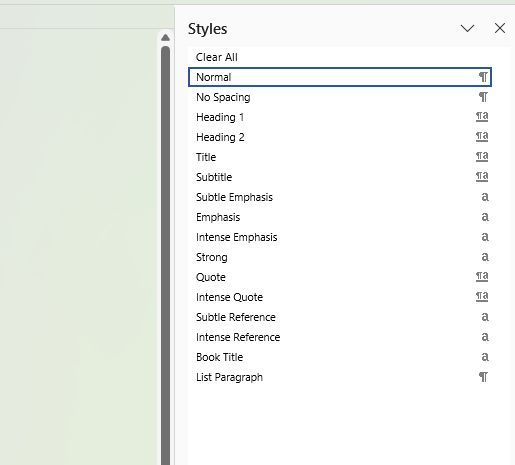
- Open Home > Styles and check that your custom styles are still listed.
- Email the blank file or files to support@auto-dox.com.
Beware Confidentiality
The file should contain formatting only. Remove names, addresses, clauses, matter numbers, document properties, comments, and tracked changes.
Outlook house style
If you want to configure Sonar for Outlook to use your house style, email your settings to support@auto-dox.com.
Include:
- Preferred platform: Classic Outlook, New Outlook, or Outlook on the Web
- Font
- Font size
- Paragraph spacing (before/after): Classic Outlook only
If different teams use different settings, send the details for each platform or team.
Classic Outlook
- Go to File > Options > Mail.
- Under Compose messages, select Stationery and Fonts.
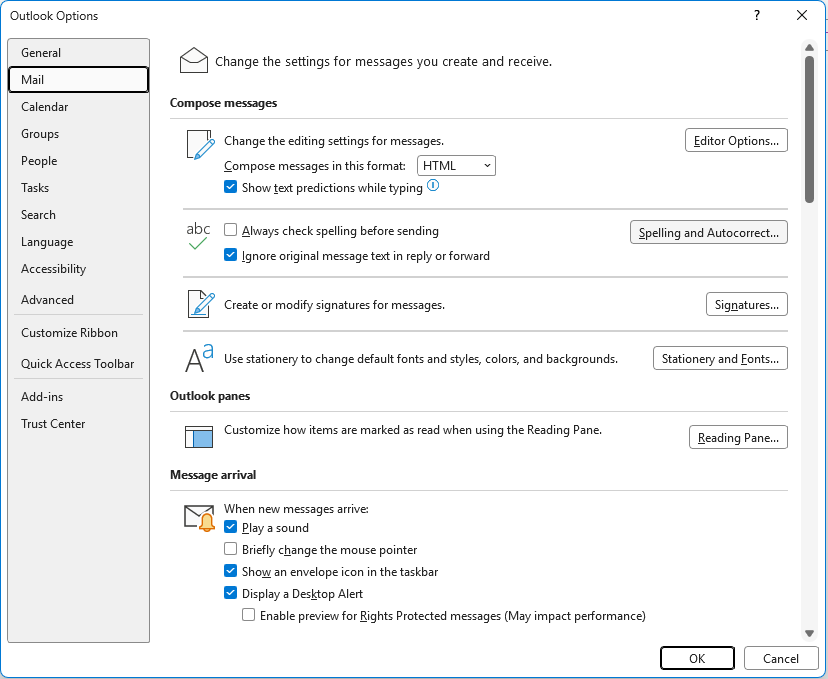
- Record the font and size for New mail messages and Replying or forwarding messages. Include both if they are different.
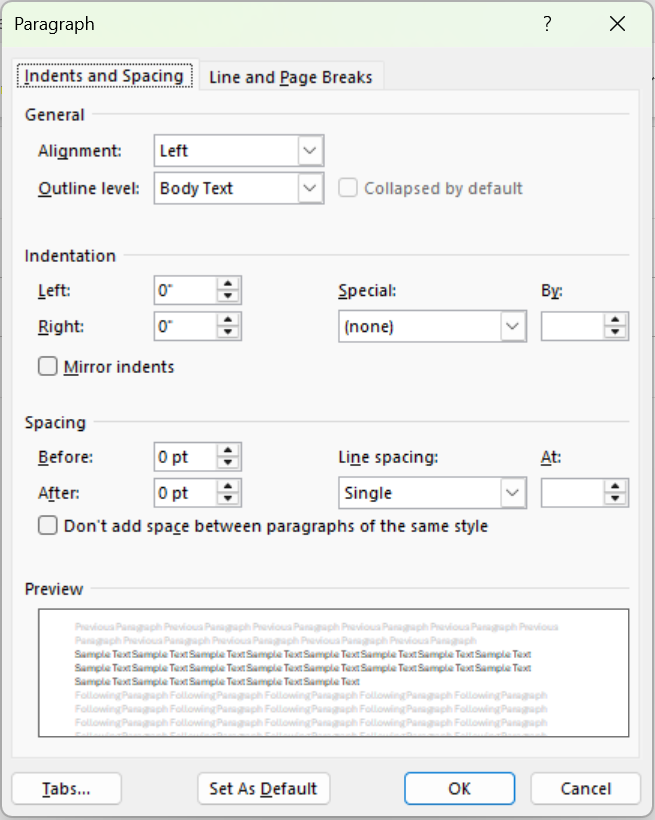
- Create a blank email. On Format Text, open the Paragraph settings. Record Before, After, and Line spacing. If your firm uses indentation, also record Left, Right, Special, and By.
New Outlook and Outlook on the Web
Both platforms use the same settings page.
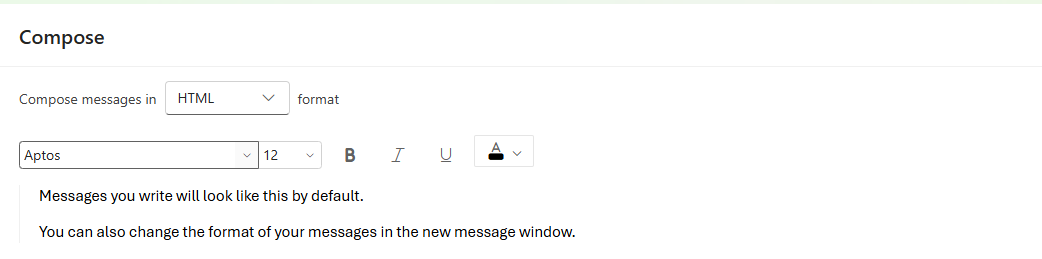
- Go to Settings > Mail > Compose.
- Record the font and font size shown under Compose.
For more information, see Microsoft's guides to customizing Word styles and changing the default Outlook font.