Workspaces
A workspace is a collection of documents and information you want to use together. It can hold a client's documents, your work in a particular practice area, or the precedents your team returns to regularly.
What should you put in a workspace?
Think about the collection you would want beside you when answering a question or preparing a draft:
- A client's information: agreements, advice, reports, schedules, and other materials for that client. Keep it current as the relationship develops.
- Your golden-standard precedents: for example, a workspace called “Golden-standard SHA precedents” containing your preferred shareholders' agreements and explanatory notes. Use it when reviewing or drafting the next SHA.
- Work in a particular area: collect your research, advice, and useful examples on a recurring subject, such as employee incentives or commercial leases.
- Documents for a specific piece of work: keep the drafts, supporting documents, and background materials for a transaction or dispute together.
Choose a name that tells colleagues what the collection is for. Separate client material from reusable firm precedents when they need different access or when you want to reuse the precedents on other matters. A client workspace can support several matters, while a precedent workspace can support work for many clients. Link the collection to the relevant matter without uploading the same files again.
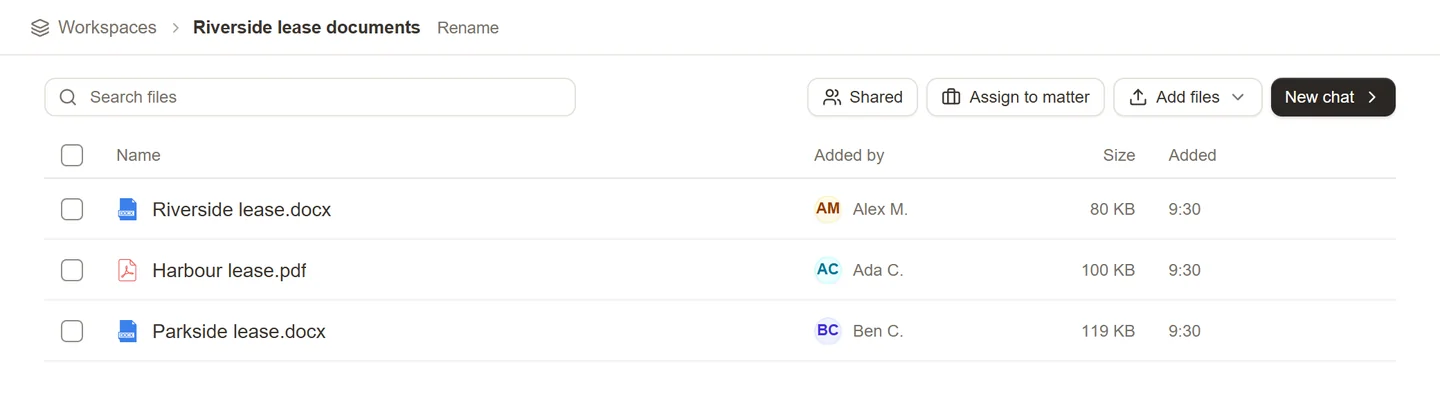
Create a workspace
- Open Workspaces in the Sonar Legal App.
- Select New workspace and give it a name you will recognize, such as “Riverside lease documents”.
- Add a short description if it helps your colleagues understand what belongs here.
- Open the workspace to add your documents.
Add or remove files
Open Add files, then choose Upload files to select files from your computer, or Import from OneDrive to choose Microsoft files you can access. You can also drag files onto the workspace. Wait for them to finish processing before asking questions about their contents. If a file fails, use its retry control or check the file and upload it again.
Use Search files to find a document. Open a file to preview it. To remove a file, use its menu, or select several files and use the removal control. Confirm the removal only when you no longer need those files in this workspace. Removed documents will no longer be available to this workspace's chats.
Share a workspace
- Open the workspace's sharing control.
- Add colleagues from your organization.
- Choose the access each person needs: Viewer to read and use the workspace, Editor to work on its contents, or Owner to manage it and its access.
- Use organization-wide access only when the whole firm should have access.
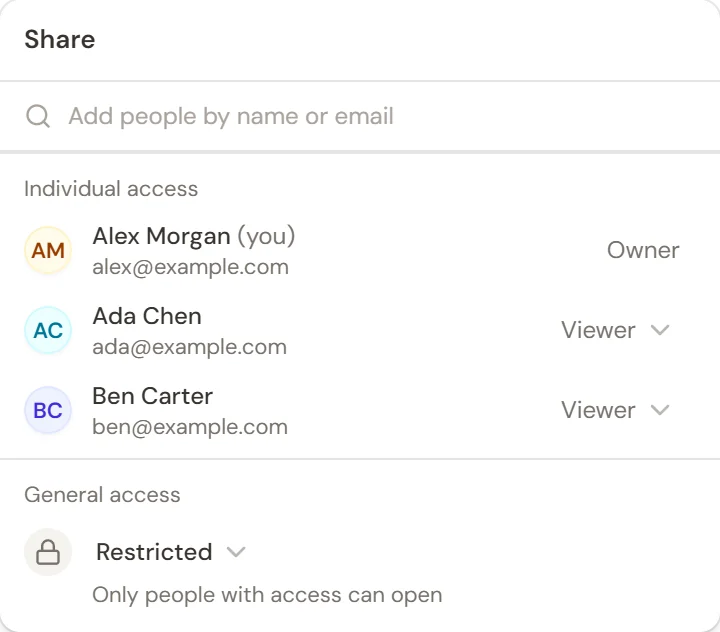
Owners manage sharing. Access marked Via matter comes from a linked matter; change that access on the matter. Removing a direct invitation may not remove access someone also has through a matter or your organization.
Link the workspace to a matter
Use the workspace's Assign to matter control to choose the relevant matter. You can also link an existing workspace from the matter page. A matter can bring together more than one workspace. See Matters for how this affects access and the materials available to a chat.
Ask questions about the documents
Select the workspace's chat button, or open a chat and choose Add workspace from the sources menu. Check that the correct workspace is selected before sending your question.
For example, select Golden-standard SHA precedents and ask Sonar Legal to compare the reserved-matters provisions in your precedents. If you want to review a new client draft against them, attach that draft as well and explain whose interests you represent.
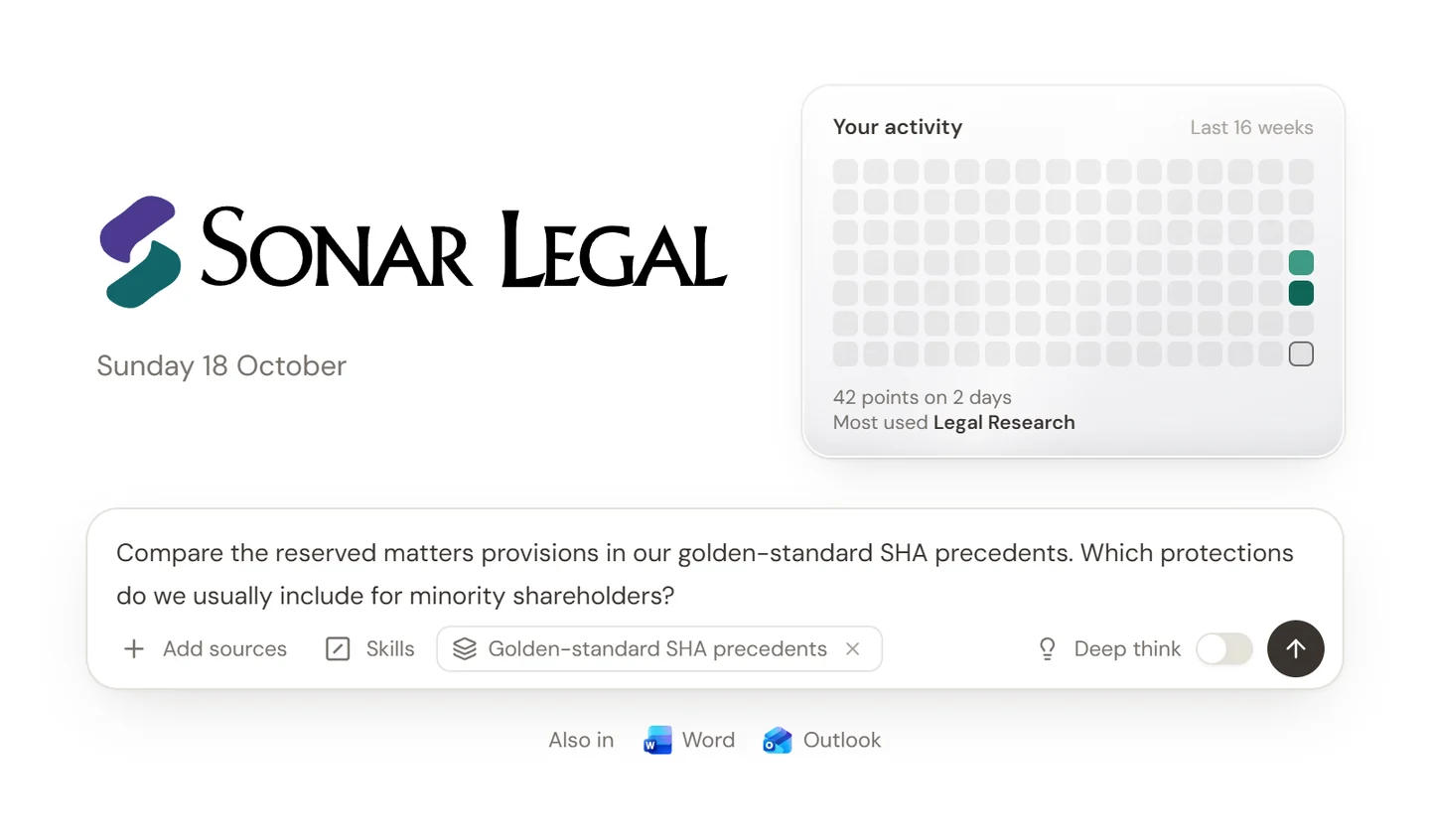
Be specific about the result: a comparison, a list of departures, proposed wording, or a short client note. Open the supporting sources in the answer to check the relevant passages.
For reusable instructions rather than documents, create a skill.