Matters
A matter brings together what your team needs for a particular piece of client work. It can combine one or more workspaces with the related tables, tasks, diagrams, and conversations.
How is a matter different from a workspace?
A workspace holds a collection of information. A matter brings the relevant collections and the work being done with them into one place.
For example, for a shareholders' agreement matter, you could link:
- The client's workspace, with the draft agreement, company information, and instructions.
- Your firm's Golden-standard SHA precedents workspace.
- A workspace containing relevant research or advice from similar work.
Your team can then work in the context of that matter, drawing on the linked collections it has access to. The precedent workspace can also be useful on other matters; you do not need a new copy of the same collection for each one.
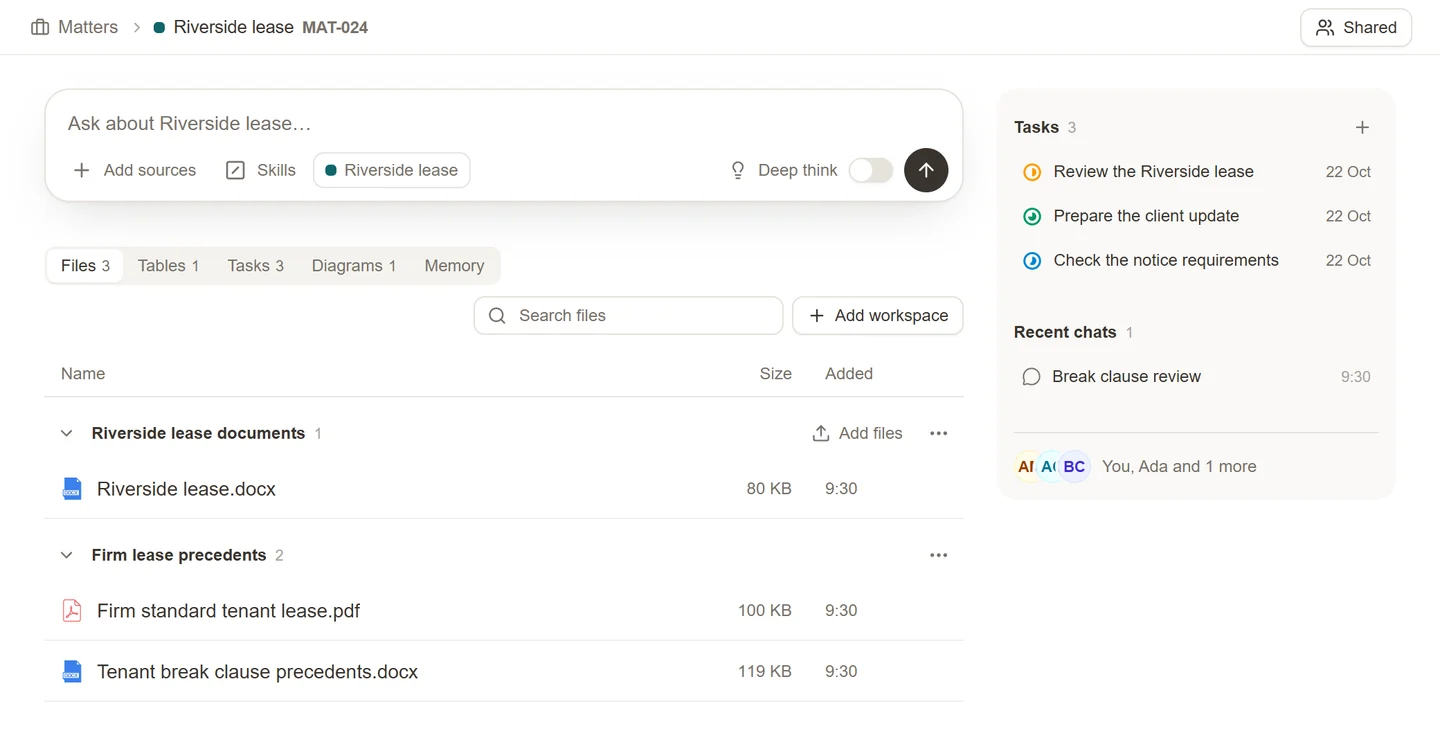
The same approach works for a lease review: combine the client's lease documents with your firm's lease precedents, then keep the review table, tasks, and conversations with that matter.
Create a matter
- Open Matters in the Sonar Legal App and select New matter.
- Give it a clear name. Add the details that help your team identify the work.
- Open the matter and link the resources you need.
Add workspaces and other resources
In the matter's Files view, choose Add workspace. Link an existing workspace or create one for the matter. Repeat this to add the other collections you need.
For the Riverside lease example, link Riverside lease documents and Firm lease precedents. The matter brings both together while each remains a separate workspace with its own files.
Use the matter's Tables and Diagrams views to open related work. New resources created in the context of a matter can be assigned to it; for an existing resource, use its matter control. Linking a workspace organizes the collection without requiring you to upload the same documents again.
Share the matter with your team
Open the sharing control and add the colleagues who need access. Choose Viewer, Editor, or Owner according to their responsibilities. An owner can also set general access for everyone in the organization.
Matter access can carry through to linked resources, including workspaces. Before linking confidential documents, check who already has access to the matter. A workspace's sharing panel shows when access comes Via matter. Review direct resource sharing too: removing someone from a matter does not remove a separate invitation they still hold to a workspace.
Start a matter conversation
Ask a question from the matter page, or choose Add matter in a chat's sources menu. Check the matter shown in the composer before sending. Your question can then use the resources you are allowed to access in that matter.
For example, with Riverside lease selected, ask for a comparison of the client's draft against the firm's lease precedents and a summary of the points needing instructions.
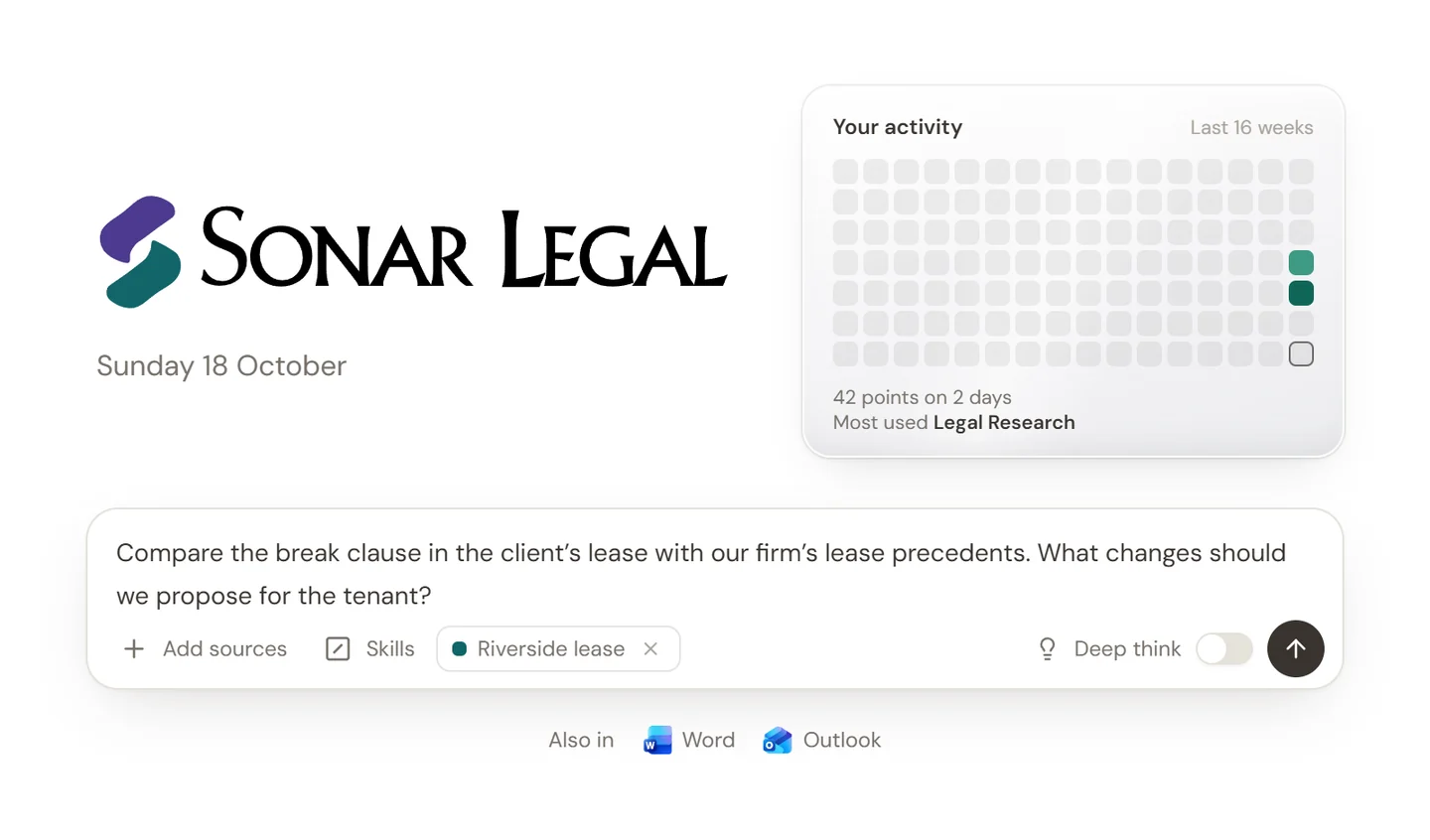
The matter gives Sonar Legal the context for the work; your prompt tells it what to do with that context. Follow up in the same conversation to narrow the question or request a draft.
Keep the matter useful
Use the matter page to revisit recent chats and open tasks. Keep matter-specific instructions and remembered facts in the matter's memory rather than in personal preferences that apply to unrelated work. See Manage memory.