Ask questions about a table
Use a table conversation to move from individual cells to an answer across the review: which documents need attention, how terms compare, or what your client needs to decide.
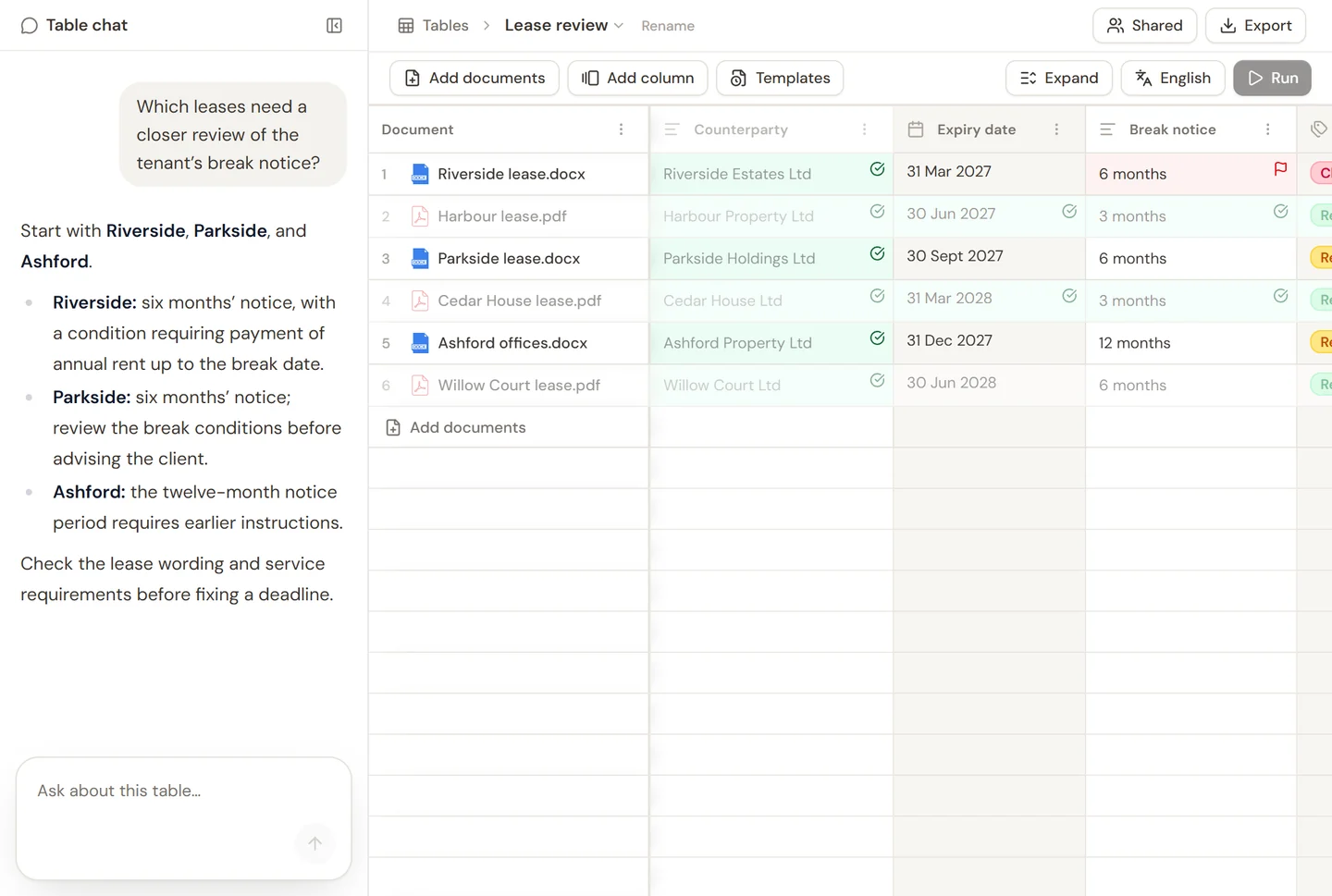
Ask from inside the table
- Open the table you want to use.
- Select Chat in the toolbar, or use the floating Ask about this table box.
- Send it and review the response in the table chat.
- Ask a follow-up question to narrow the result or change its presentation.
For example:
- “Which agreements expire in the next three months?”
- “Compare the liability caps and identify exceptions.”
- “Summarize the agreements requiring consent to assignment.”
If the answer depends on information your table does not contain, add a suitable column or ask a more specific question about the source documents.
Use the table in the main chat
Start a conversation in the Sonar Legal App. Open the sources menu, choose Add tables, and select the table. Check that its name appears in the composer before asking your question.
You can use this when you want a narrative result, such as a client report based on the review. Include the purpose and audience: “Prepare a short report for the buyer on the change-of-control risks in this table.”
Check the answer
Select the relevant cell to open the document's answers in the panel on the right. Read Answer and Reasoning, and open the source citation where available. Use the checkmark to mark an answer reviewed, or the flag to keep a point that needs attention. Check dates, exceptions, qualifications, and the party to whom a right belongs. A missing answer is not confirmation that the document contains no such provision.
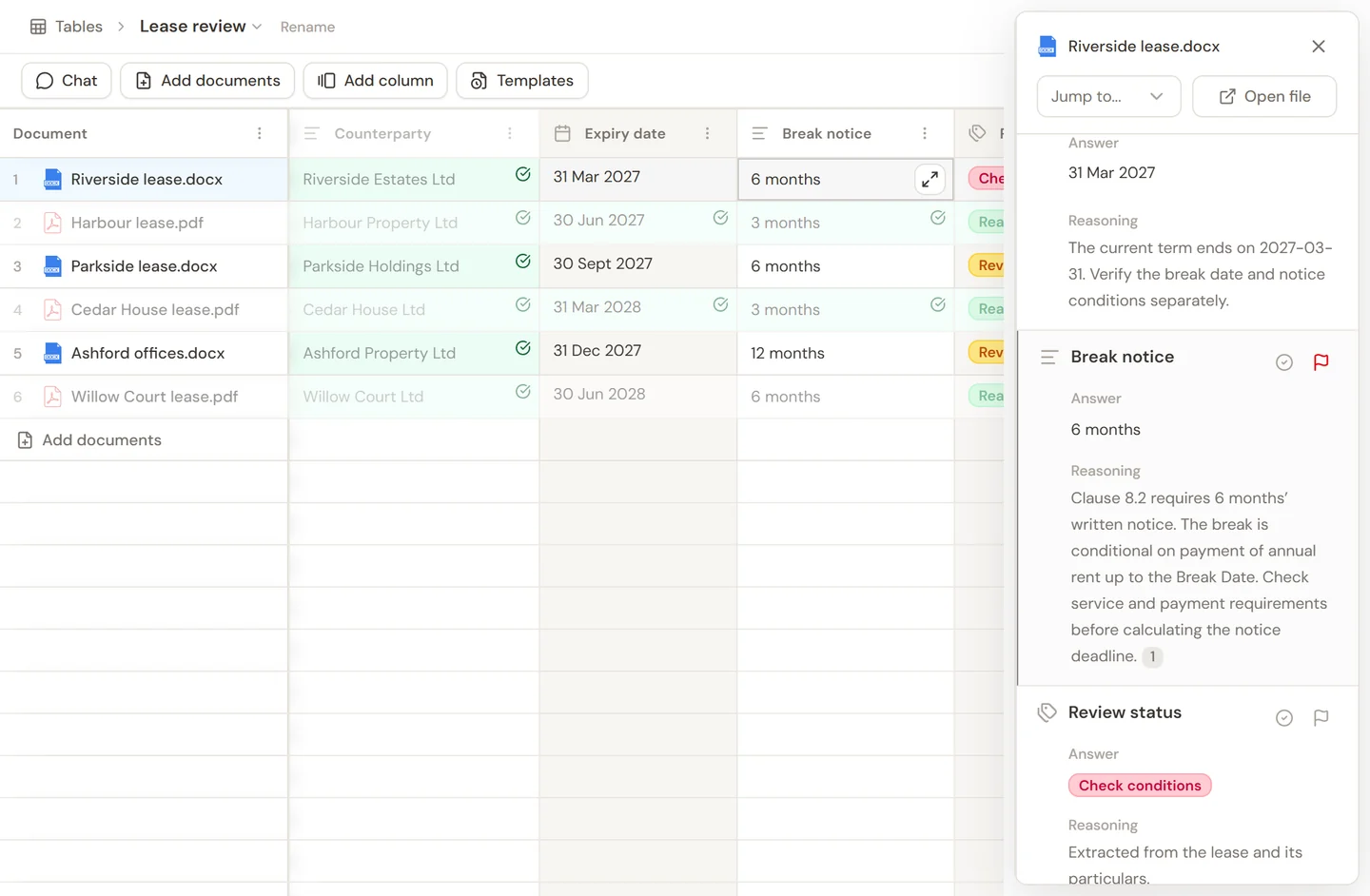
If the table contains a failed or unfinished extraction, resolve that before relying on a complete comparison. When you change the latest document version, review the fresh extraction; earlier answers may no longer describe the current document.
Keep the result
Use the response's available copy, document, or export controls to take the result into your work. If you need a spreadsheet or report of the table itself, use the table's export menu and choose the available format. Review the exported result before sharing it.