Versions, notes, and chronology
Each document in a table has a place for notes, a chronology, reminders, and saved versions. Open the row's three-dot menu and choose Edit Data to bring these together.
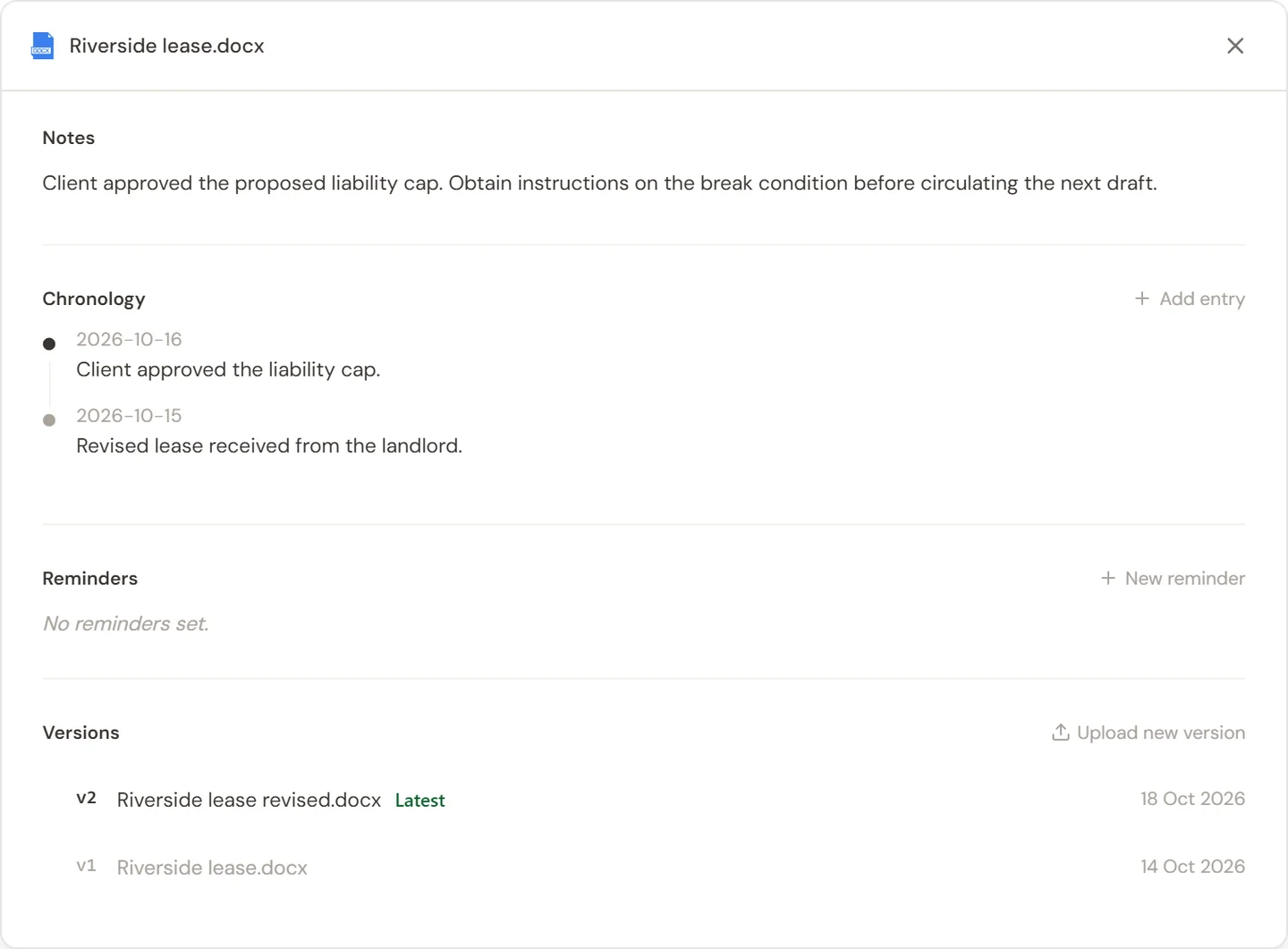
Add a note
Select the notes area and record the point you want your team to retain: a client instruction, an unresolved issue, or the reason for a review decision. Finish editing and wait for saving to complete before leaving.
Notes belong to this document's record in the table. Put a general drafting preference in Memory or a reusable instruction in a skill instead.
Keep a chronology
Use Chronology in the document information panel to add an event with its date and description. For example: “Client approved the revised liability cap.” Review existing entries before adding another one.
The chronology can include entries recorded by the application as well as entries you add yourself. Check the description and date of each event; it is a review record, not a complete record of everything that happened outside Sonar Legal.
For a separate visual timeline across a matter, see Diagrams and chronologies.
Upload a new document version
- Open Versions in the document's information panel.
- Select Upload new version and choose the revised file.
- Read the confirmation carefully before making it the latest version.
- After confirming, wait for the table to extract answers from the new latest document.
Changing the latest version replaces the existing extracted cell data for that document. If you want to keep the current answers alongside the revised document's answers, cancel and add the revised file as a separate table row instead.
Return to an earlier version
Select an earlier saved version to see its available actions. Choose Make latest if you want that version to become the one used for extraction. This also triggers fresh extraction and replaces existing cell data, so review the same confirmation carefully.
After any version change, check the new answers and dates, especially those used for reminders. Keep the latest version and your review notes aligned before circulating a report.