Partner
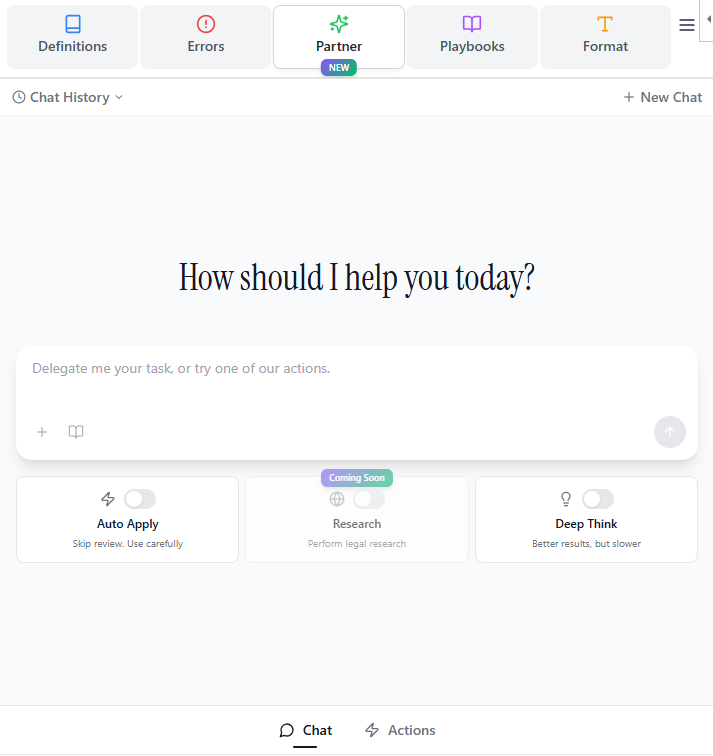
Partner is your AI workspace inside Word. It always understands the document you currently have open, so you can ask questions, make edits, and move work forward without switching tools.
Partner consists of two components:
- Chat for document-aware legal reasoning, drafting support, and guided revisions.
- Actions for single-click, instant workflows like drafting, redrafting, translation, summaries, and pushbacks.
Chat
Use Partner Chat to work directly with your live document context. You can ask legal questions, request edits, perform risk assessments, reply to counterparty's comments, and generate work product while staying inside Word.
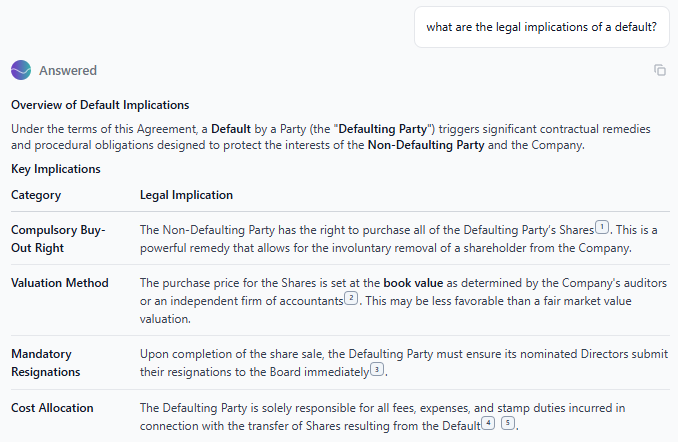
Legal Analysis
Ask legal questions about your document and specific clauses, including practical implications and interpretation (for example, termination mechanics or post-termination obligations). Sonar Legal grounds responses in the document and provides citations.
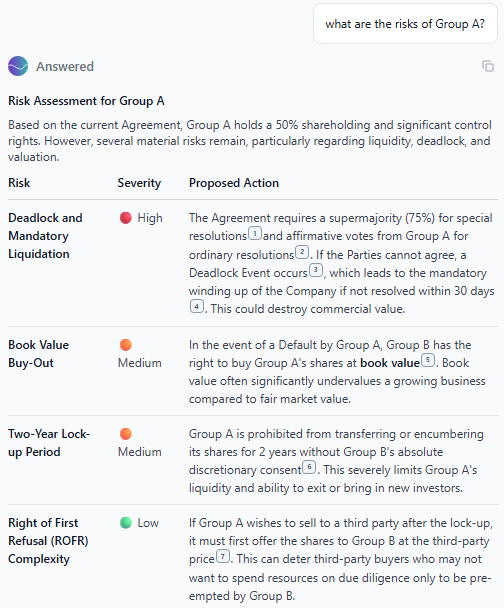
Risk Analysis
Run an initial risk analysis from your client's perspective to quickly identify key issues, negotiation points, and terms that need attention.
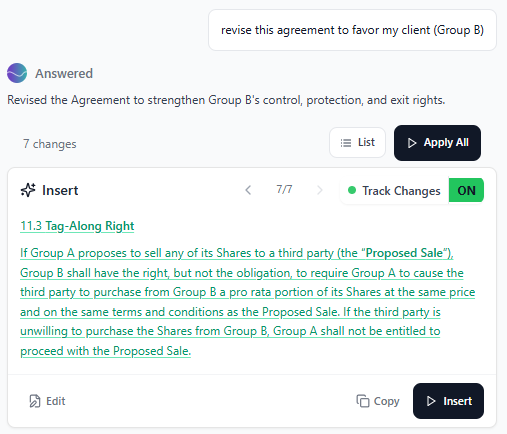
Contract Review
Request targeted revisions based on your instructions, or attach a precedent agreement to guide Sonar Legal's redlines and improve consistency with your preferred drafting approach.
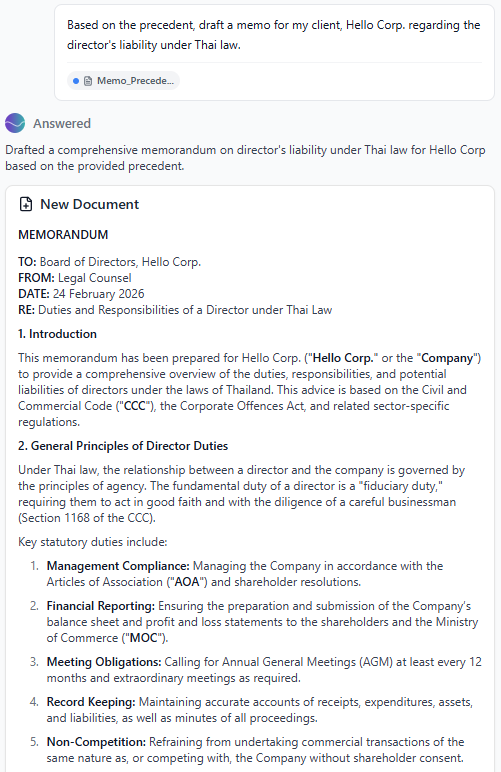
Draft Memos
Attach your research or supporting documents and ask Sonar Legal to compile a well-structured legal memorandum. You can also provide a sample memo as precedent for structure and style.
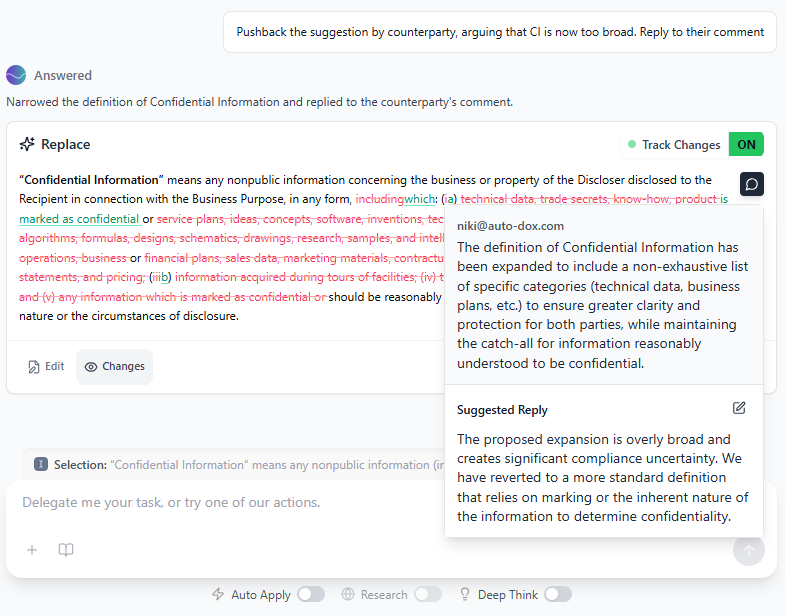
Respond to Counterparty
When a counterparty sends redlines and comments, Partner Chat helps you generate response redlines and draft clear comment replies aligned with your negotiation strategy.
Actions
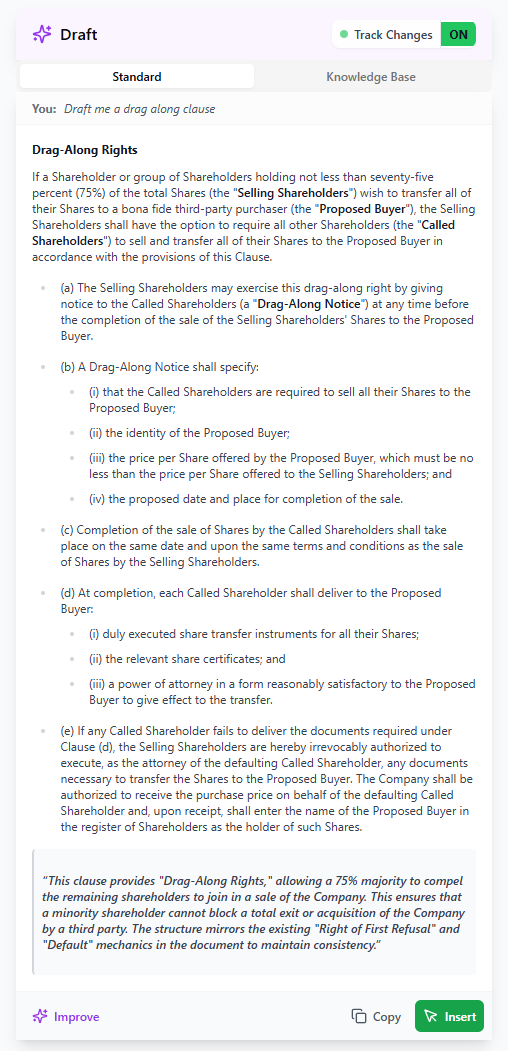
Draft
Generate a new clause by providing detailed instructions, such as the type of clause and your party preference. Optionally, you can receive two separate suggestions: one generated with the assistance of the knowledge base and one generated without it.

Once you receive a response, you can choose to insert the generated clause either at your cursor's location (Insert at Cursor) or at a location designated by Sonar Legal as optimal (Insert).
You can specify whether the clause is inserted as a tracked change or as a normal, untracked insertion by using the toggle at the top of the suggestion card. If you opt for a tracked change, you will be prompted to enter the name of the person making the change. Select your name for internal review or your organization's name for external communications, according to your policy.
Do not use the Draft action to draft an entire document. Use Partner - Chat instead!
Redraft
Revise an existing clause by first selecting the clause(s) you wish to change. You will then be prompted to provide detailed instructions for the redraft. Optionally, you can receive two suggestions: one generated using the knowledge base and one generated without it.
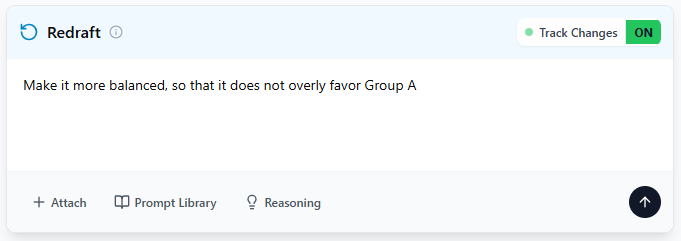
Selection Required: Attempting to use this feature without first selecting a clause will trigger an error.
Once you receive a response, you can apply the redrafted clause directly in the document by clicking Replace.
Similarly, you can choose whether the replacement is applied as a tracked change or as a normal (untracked) replacement by using the toggle at the top of the suggestion card. If you opt for a tracked change, you will be prompted to enter the name of the person making the change. Choose your name for internal documents or your organization's name for external communications, based on your policy.
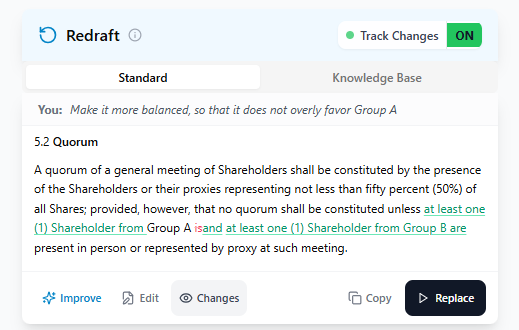
When track changes is enabled, you have the option to insert a comment along with your redrafted clause. By default, Sonar Legal provides two comment templates: one optimized for client, or internal communications, and one targeted for the counterparty. You can customize these comments to match your specific requirements and communication style.
Translate
Translate a selected clause by specifying the target language into which it should be translated. By default, if the selected clause is written in a language other than English, it will automatically be translated into English. Conversely, if the clause is already in English, the system will default to translating it into the language of your organization's primary location.
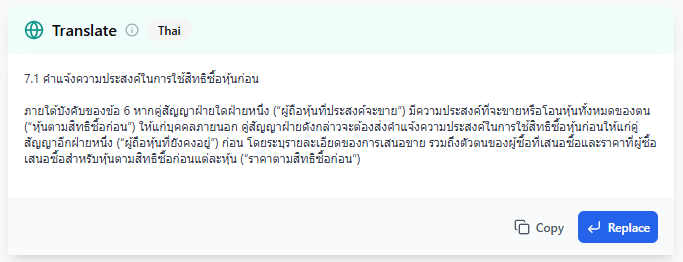
Selection Required: Attempting to use this feature without first selecting a clause will trigger an error.
Summarize
- Entire document: Create a comprehensive legal summary of your entire document in a table with the clause name, a concise summary, and Attention Points.
- Selection: Generate a summary for a specific portion of your document in the same table format as Entire document. Selecting very short text may trigger an error.
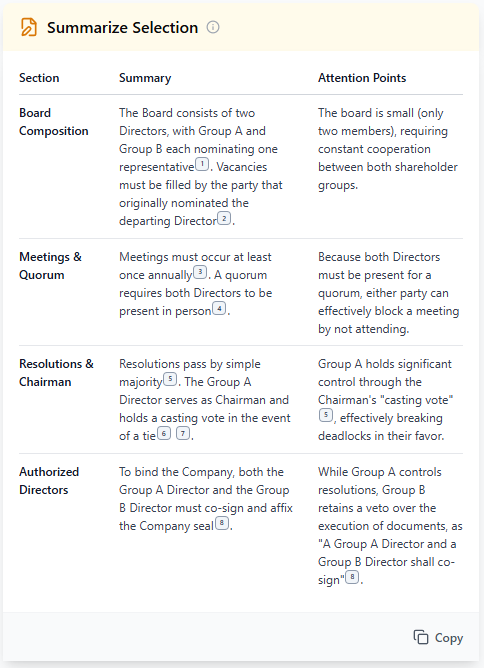
- Redlining: Produce a detailed summary of tracked changes (redlining), including the original text, revised text, and a concise explanation. Track changes must be enabled.
Pushback
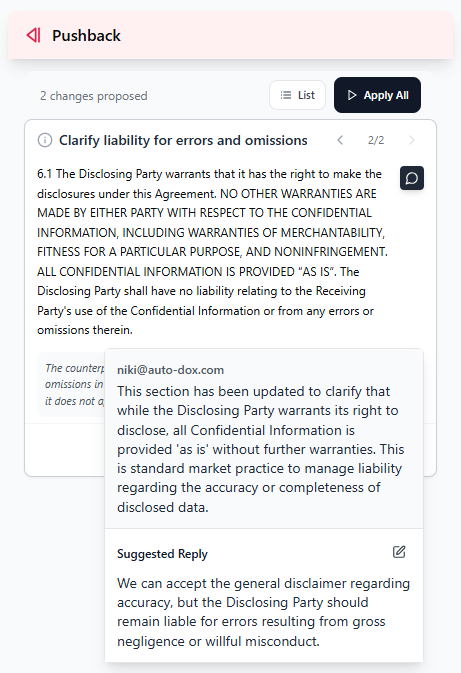
Select the counterparty authors and provide instructions on how you want to push back. Sonar Legal will generate counter-redlines and draft replies to counterparty comments based on your guidance.
Improve
If you are not completely satisfied with any response from Sonar Legal's actions, you can use the Improve function to refine the output. Simply enter your instructions describing what you want to see improved or modified in the response, and Sonar Legal will generate an updated based on your specific improvement requirements. You can repeat this process multiple times, until you reach a satisfactory result.