Playbooks
Redline your incoming agreements based on your playbooks, or utilize one of the built-in Sonar Playbooks.
Custom Playbooks
Sonar Legal lets your team create, store, and use fully customizable playbooks to review incoming agreements based on your organization's standards.
Create Playbook
There are four ways to create a playbook in Sonar Legal:
- From Precedent: Upload a precedent file, either an existing playbook file or a gold-standard agreement you want to convert into a playbook. Optionally, add instructions on which sections Sonar Legal should emphasize and which party the playbook should favor.
- From Current Document: Generate a playbook from the document currently open in Word, such as a gold-standard agreement or a document containing playbook-style rules in plain language. You can also add optional instructions on focus areas and party preference.
- From Instructions: Generate a playbook purely from freeform instructions.
- From Scratch: Start with a blank playbook and define each rule manually.
Configure Rules
If you create a playbook using From Precedent, From Current Document, or From Instructions, Sonar Legal generates a first draft that you can review and refine.
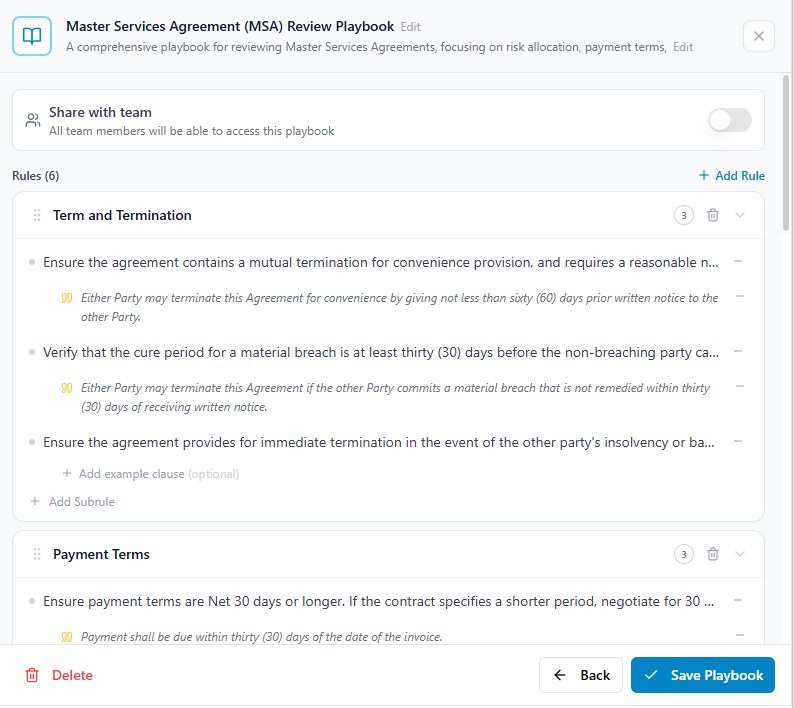
Sonar Legal structures playbooks as:
- Rules: Major contract topics, such as Termination, Payment Terms, or IP Rights.
- Subrules: Specific checks under each rule that define what should be reviewed.
- Examples: Target wording or drafting guidance that helps Sonar Legal apply each subrule consistently.
Collaboration
Playbooks can be kept private or shared with members of your organization. Shared playbooks are visible to all members, but only the playbook owner can edit them.
Quick Check
Utilize our "Quick Check" feature to conduct a high-level, neutral review of your contract. These playbooks are designed to identify common issues such as incomplete clauses, ambiguous language, and inconsistent legal terminology.

Sonar Legal Playbooks
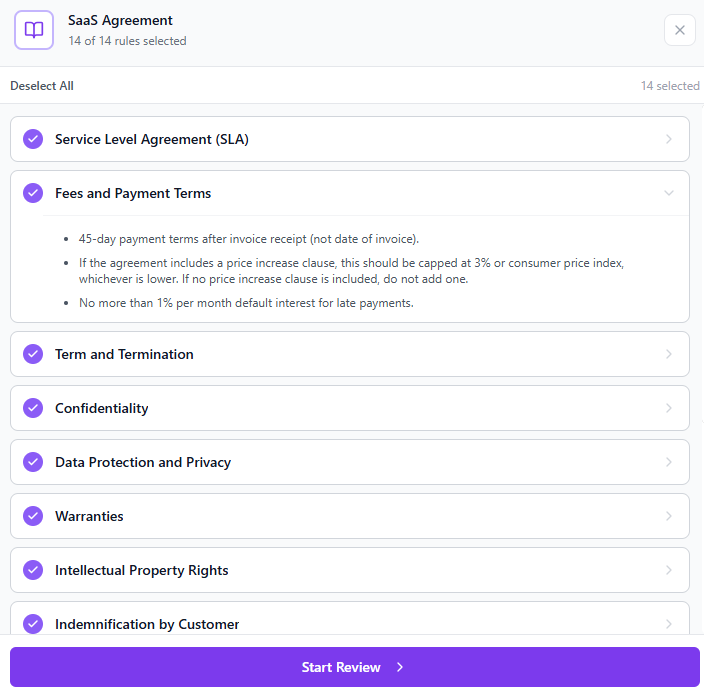
These specialized playbooks are tailored to favor one of the parties in the agreement. When you click Start, you will be redirected to the Playbook Rules page, where you can review all the rules included in the playbook. You can then choose which rules to include or exclude in this specific review, allowing you to customize the evaluation to your needs.
Results Display
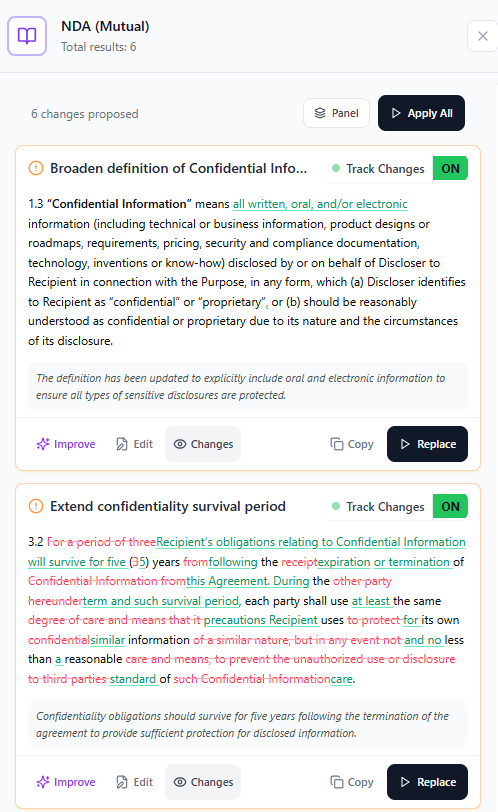
After the review is complete, Sonar Legal will display its findings in a results panel. You can navigate through the suggestions using the arrow buttons. Each suggestion is categorized by severity (high, medium, or low), so you can easily prioritize the issues that need attention. To apply a suggestion directly to your document, simply click Replace.
You also have the option to decide whether the replacement is applied as a tracked change or as a normal, untracked update. Use the toggle at the top of the results panel to choose your preferred option. If you opt for a tracked change, you will be prompted to enter the name of the person making the change. Choose your name for internal documents or your organization's name for external communications, based on your policy.
When track changes is enabled, you have the option to insert a comment along with your redrafted clause. By default, Sonar Legal provides two comment templates: one optimized for client, or internal communications, and one targeted for the counterparty. You can customize these comments to match your specific requirements and communication style.