Chat and legal research
Start a conversation with the result you need: an explanation, a risk review, a draft, or research on a legal question. Give enough context to make the task clear.
Add the right material
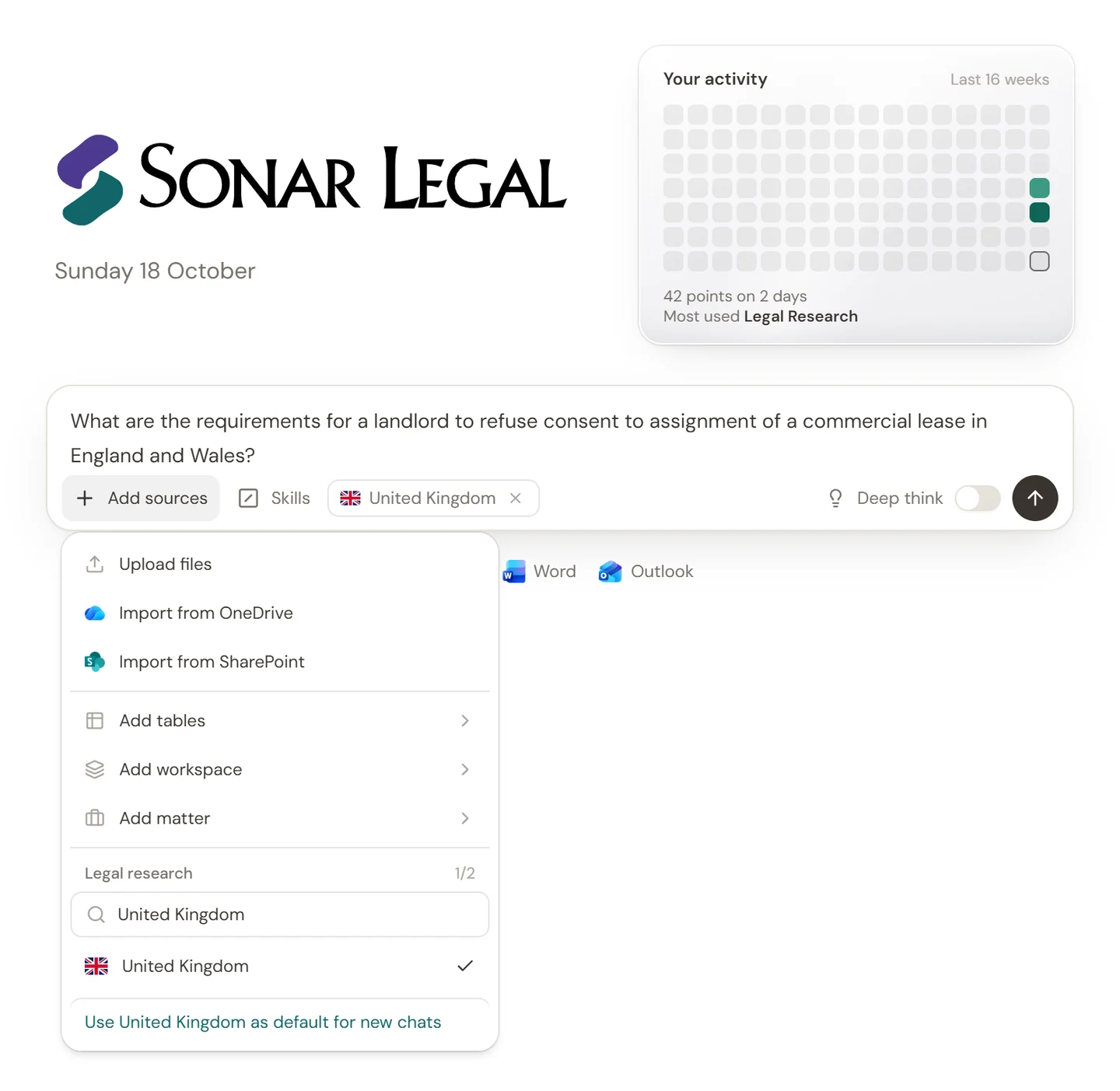
Open the sources menu beside the composer to attach files or choose Add workspace, Add matter, or Add tables. Check the names shown in the composer before sending.
A workspace supplies a document collection. A matter brings together the resources for a piece of client work. A table lets you ask questions across an existing document review. Selecting a resource does not give you access to materials you have not been invited to use.
Ask a focused question
State your client's position, what to examine, and the form of the answer. For example:
Acting for the buyer, summarize the change-of-control provisions in these agreements. Show the consent requirement and relevant clause for each agreement.
Ask a follow-up if you need a narrower answer or a different format. For repeat work, select a skill instead of retyping the same instructions.
Select legal research
- Open the sources menu and find Legal research.
- Search for and select up to two relevant jurisdictions.
- Include the legal issue, key facts, and relevant date in your question.
- Send the message and review the answer's sources.
Jurisdictions help focus the research. They do not tell Sonar Legal the facts of your matter, so provide those in the question or selected materials. Turn on Deep think for work that needs a more considered analysis, and allow additional time.
Check supporting sources
Open citations to read the passages behind the answer. Check that the source supports the point, that the relevant law is current for your question, and that the document is the version you intend to use. If something is missing, ask for clarification or supply the missing material.
Turn the answer into work product
Ask for a client note, a draft clause, or a document when you are ready. Open a generated document or other result to review it alongside the chat. Use the available copy and download controls once you have checked the content.
For editing rather than research, see Documents. For questions about an existing review, see Ask questions about a table.