Compare Word documents
Use Document Compare to create a redline between two Word versions. Keep the earlier document as Original and the later document as Revised so the direction of the changes is clear.
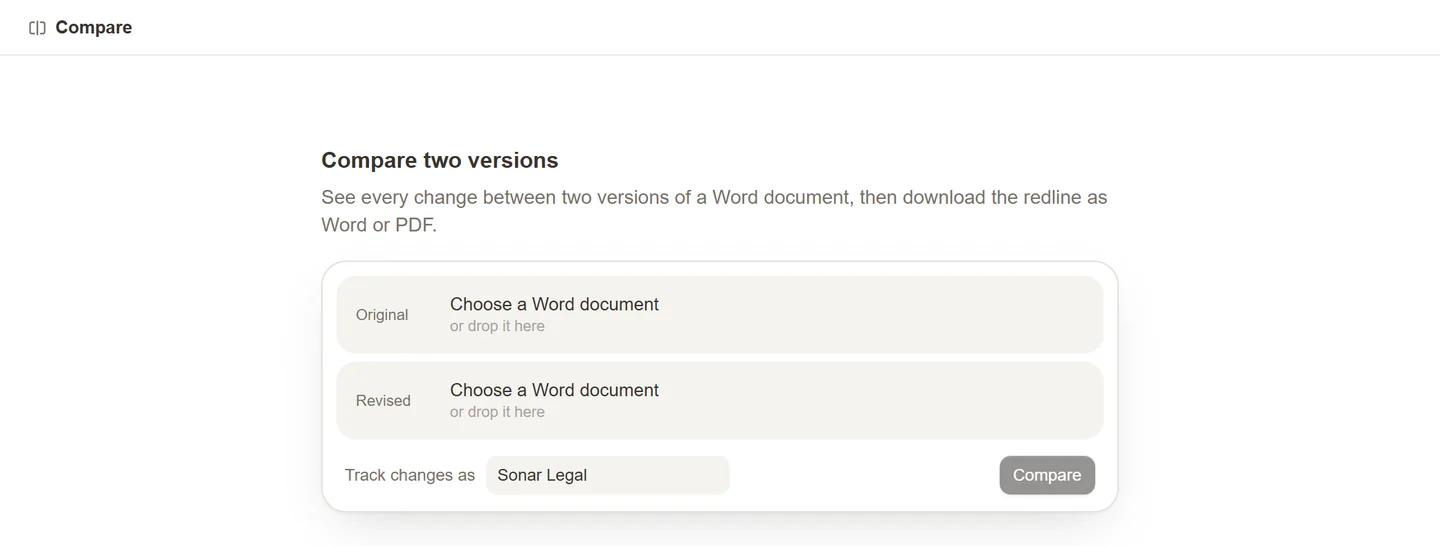
Choose the versions
- Open Document Compare in the Sonar Legal App.
- Upload a Word .docx file under Original.
- Upload the changed .docx file under Revised.
- Check the filenames. Use the swap control if the order is reversed.
- Select Compare and wait for the result.
If either file is rejected, check that it is a supported Word document. If upload fails, close the files in Word, choose them again, and retry.
Review the redline
Read the comparison preview and move through its changes. Check the surrounding provision as well as the inserted or deleted words. Use the available download control when you need the comparison in Word.
A comparison shows textual changes between the supplied versions. To assess their implications or prepare a response, open the relevant document with Partner Chat or use Partner Actions in Word.