Edit documents
Open a Word document in the Sonar Legal App when you want to work on the text without leaving the browser. You can review a document from your work or open a document produced during a conversation.
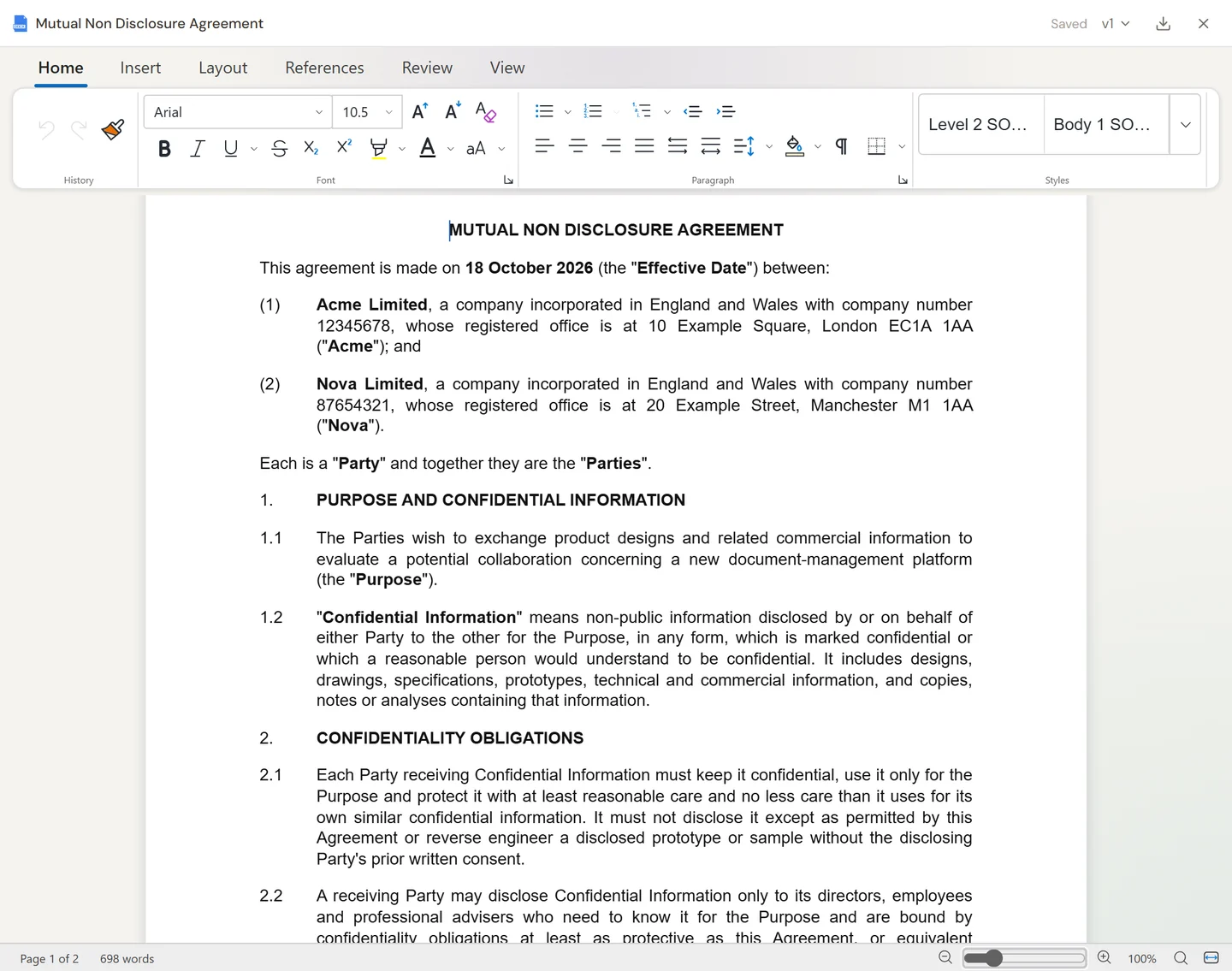
Open the document
Select the document from its workspace, table, or conversation result. Use its available open or edit control to enter the document editor. If you are starting from chat, ask for a Word document and open the resulting document card.
A preview is useful for reading and checking sources. Use the editing view when you want to change the document itself.
Make changes
Use the editor's toolbar to format and revise the text. Work directly in the document, or ask the conversation for a targeted change, then review the proposed result before accepting it.
Explain the scope of the change: “Revise the notice provision to allow email notice, keeping the other delivery methods.” Check the resulting wording in its surrounding provisions.
Review the final document
Check the edited text, numbering, defined terms, and any comments or tracked changes you intend to keep. The editor saves your changes automatically. Wait for Saved before closing it. If you see Not saved, keep the document open and resolve the saving problem before leaving. Use Document version to choose a saved version, and Download Word document when you need a copy for Word or circulation.
For a review inside desktop Word, use Partner Chat, Partner Actions, or a playbook. For a comparison between two saved Word files, use Document Compare.
Choose the right tool
Use chat for instructions and explanation, the editor for working on the actual document, and a table for the same review across several documents. If the file belongs to a table, read Versions, notes, and chronology before changing which version is current.