Actions
The Actions tab provides one-click operations that work directly on your current email—no prompting experience required. Each action is purpose-built for a specific task, so you can execute common drafting and editing workflows instantly without needing to write custom instructions.
Note: Most Actions require you to be in Compose Mode (i.e., you have clicked Reply, Reply All, Forward, or are composing a new email). Actions that modify or insert text into the email body are not available in Read Mode. See the Chat documentation for more on Read vs. Compose Mode.

Draft
Provide Sonar with the context or instructions for what the email should communicate and Sonar will generate a complete draft for you.

The output is inserted at your cursor's current position in the compose window. Position your cursor where you want the text to appear before clicking Insert.

When to use it: Starting a reply where you are unsure how to begin, or when you want Sonar to take a first pass before you refine.
Redraft
Highlight the portion of your draft you want to change and enter your instructions.

Sonar will rewrite the selection according to your prompt, previewing the changes with Track Changes–style markup so you can review what changed before accepting it.

Click Replace and the selected text is replaced in place with Sonar's revised version.

Note: The Track Changes markup shown is a visual preview only—it does not apply actual tracked changes to your email. If you need a true redline with full revision history, use the Track Changes feature instead.
When to use it: Reworking a specific paragraph that is too long, too formal, or unclear—while keeping the rest of your draft intact.
Translate
Highlight the text you wish to translate and select your target language. Unlike general-purpose translation tools, Sonar uses specialized legal terminology calibrated for accuracy in professional legal contexts.

The selected text is replaced in place with the translation.
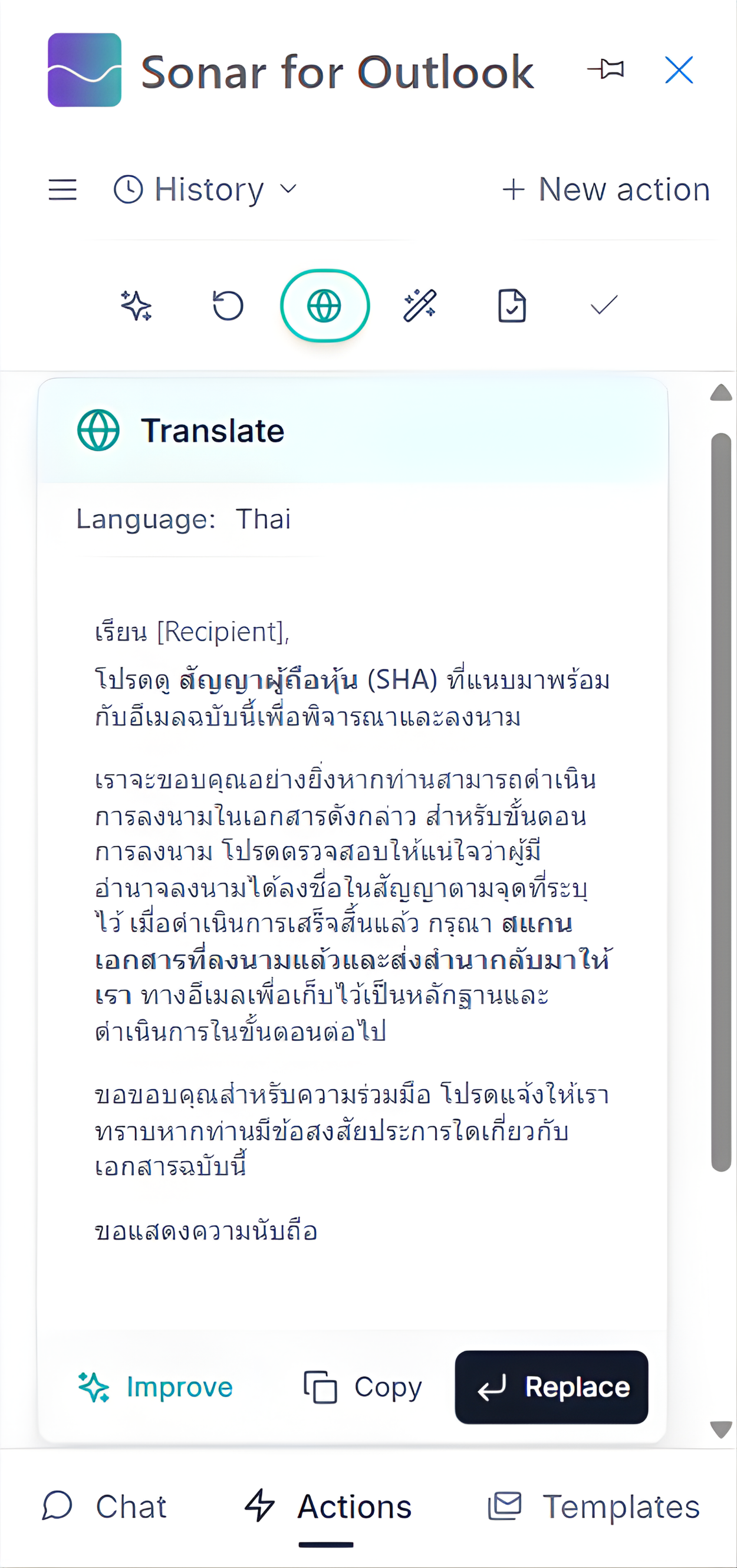
When to use it: Translating a clause, paragraph, or full email into another language for a counterparty, client, or colleague.
Polish
Highlight the passage you want to refine and Sonar will clean it up—correcting grammar and punctuation, eliminating redundant language, and clarifying ambiguous phrasing—all while preserving your original tone and intent.

The result is previewed with Track Changes–style markup so you can review what changed before accepting it. Click Replace and the selected text is replaced in place with the polished version.

Note: The Track Changes markup shown is a visual preview only—it does not apply actual tracked changes to your email. If you need a true redline with full revision history, use the Track Changes feature instead.
When to use it: Final cleanup before sending—quickly tightening language in a draft you have already written.
Track Changes
Write or edit your text in the compose window, then select the portion you want to mark up and click Track Changes.

Sonar will generate a redlined version of that selection. Click Replace to insert it into your email body with all tracked changes intact and visible to the recipient.

When to use it: Sending a revised draft back to a colleague, client, or counterparty where every modification needs to be visible and reviewable.
Accept Changes
Select the text containing tracked changes and click Accept Changes. All markup is removed and only the final accepted version remains.

This is particularly useful in collaborative workflows: a senior marks up a junior's draft using Track Changes, the junior reviews the feedback, then clicks Accept Changes to produce the clean final version ready to send.
When to use it: After reviewing all tracked changes and confirming you are ready to send the clean, finalized version.