Chat
The Chat tab is Sonar's free-form AI interface inside Outlook. Type any instruction and Sonar will analyze the full context of your active email thread—including prior messages, participants, and subject matter—to deliver accurate, relevant results tailored to your request.
Use Chat to:
- Summarize a long email thread into key points and action items
- Generate a chronology of events from a chain of correspondence
- Draft a reply from scratch based on your instructions
- Revise or redraft a selected portion of your email body
- Perform grammar checks, tone adjustments, or plain-language rewrites
- Ask open-ended legal drafting questions in context
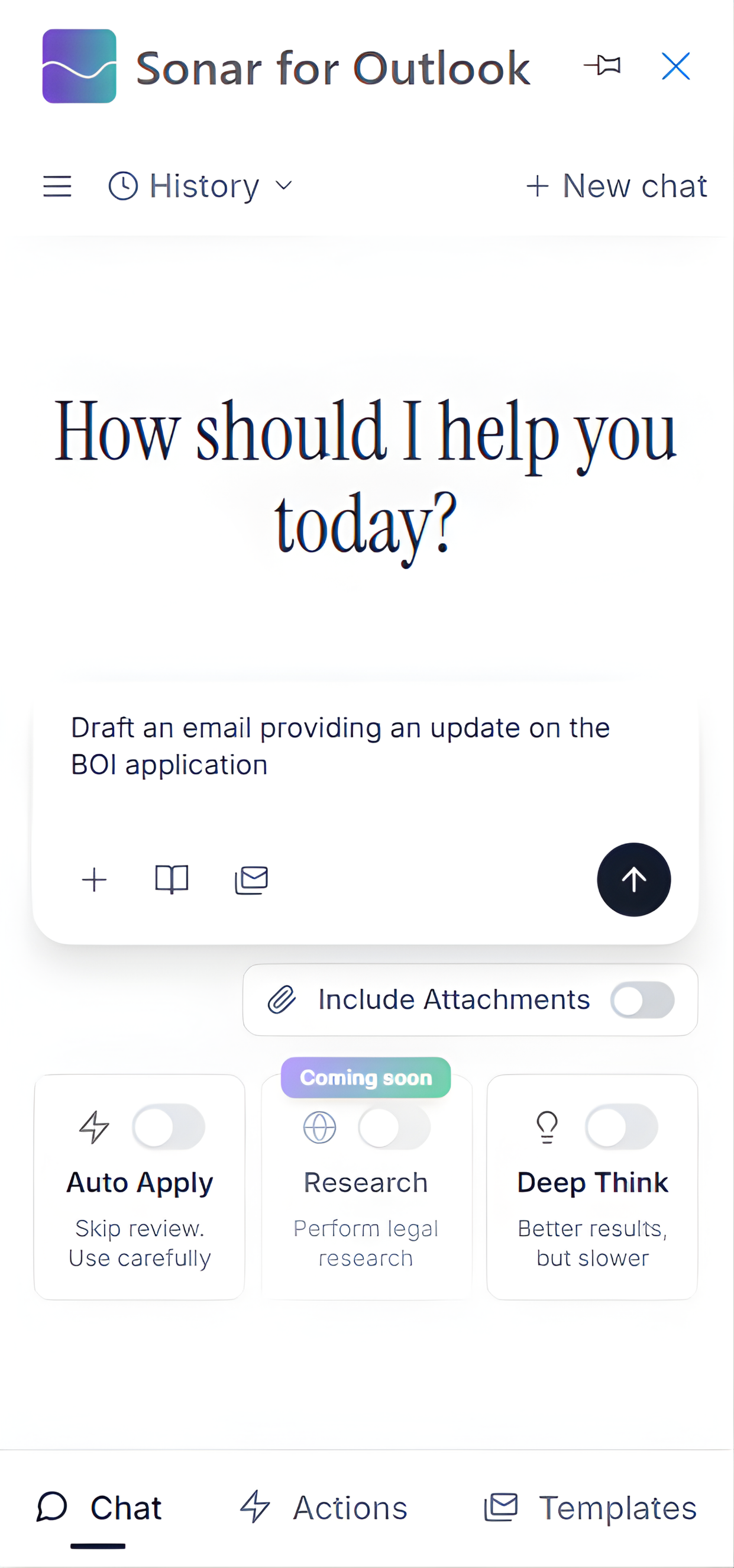
Read Mode vs. Compose Mode
Understanding the difference between Read Mode and Compose Mode is essential to getting the most out of Chat.
Read Mode
You are in Read Mode when you are viewing an email but have not yet clicked Reply, Reply All, or Forward. In this mode:
- Sonar can read and analyze the full email thread
- You can ask Sonar to summarize, extract information, or generate a draft for your reference
- You cannot select text from the email body to use as input for a revision
- The Insert button is not available — Sonar's output cannot be inserted directly into an email body because no compose window is open
Read Mode is ideal for quickly understanding a thread, generating a summary, or preparing before you reply.
Compose Mode
You enter Compose Mode as soon as you click Reply, Reply All, Forward, or start a New Email. In this mode, the full power of Chat becomes available:
- You can type a prompt and click Insert to place Sonar's output directly into your email body
- You can select a portion of text you have already written in the compose window and ask Sonar to revise, redraft, shorten, or reword that specific selection
- Sonar continues to use the full thread context to inform its suggestions
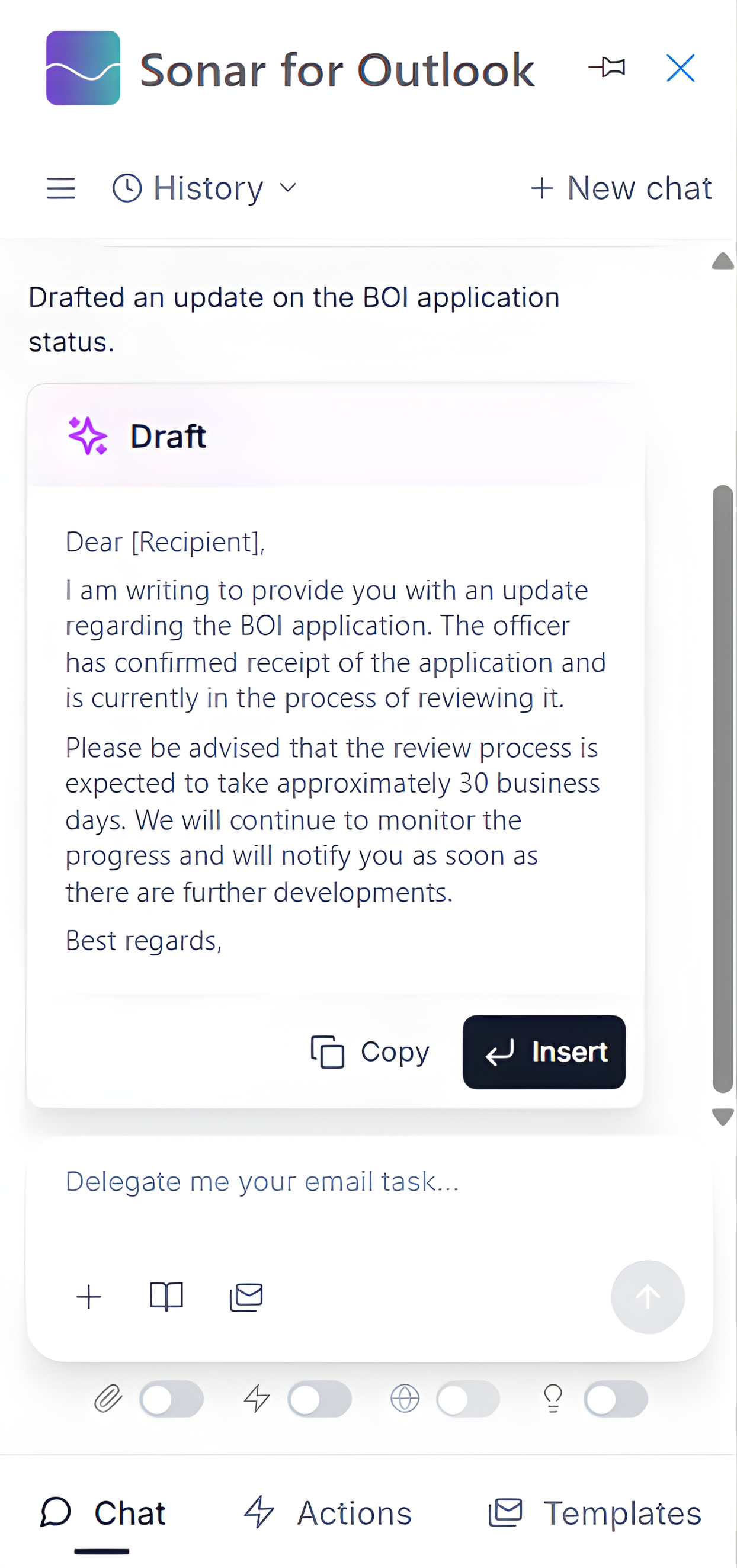
Inserting Output into Your Email
Once Sonar returns a result in Compose Mode, click Insert to place the generated text directly into your email body at the cursor position. If you had a selection highlighted when you submitted your prompt, the selected text will be replaced with Sonar's output.
Tip: You can always edit Sonar's output before inserting it, or re-prompt with more specific instructions to refine the result.
Example Use Cases
| What you want to do | How to use Chat |
|---|---|
| Understand a long thread quickly | Open the email (Read Mode) → ask "Summarize this thread and list any open action items" |
| Build a timeline of events | Open the email (Read Mode) → ask "Create a chronology of events from this correspondence" |
| Draft a reply | Click Reply (Compose Mode) → ask "Draft a professional response declining the proposal" |
| Revise something you wrote | Click Reply, select the text → ask "Make this more concise and formal" |
| Grammar check your draft | Click Reply, select your text → ask "Fix grammar and punctuation" (or use the Polish Action) |